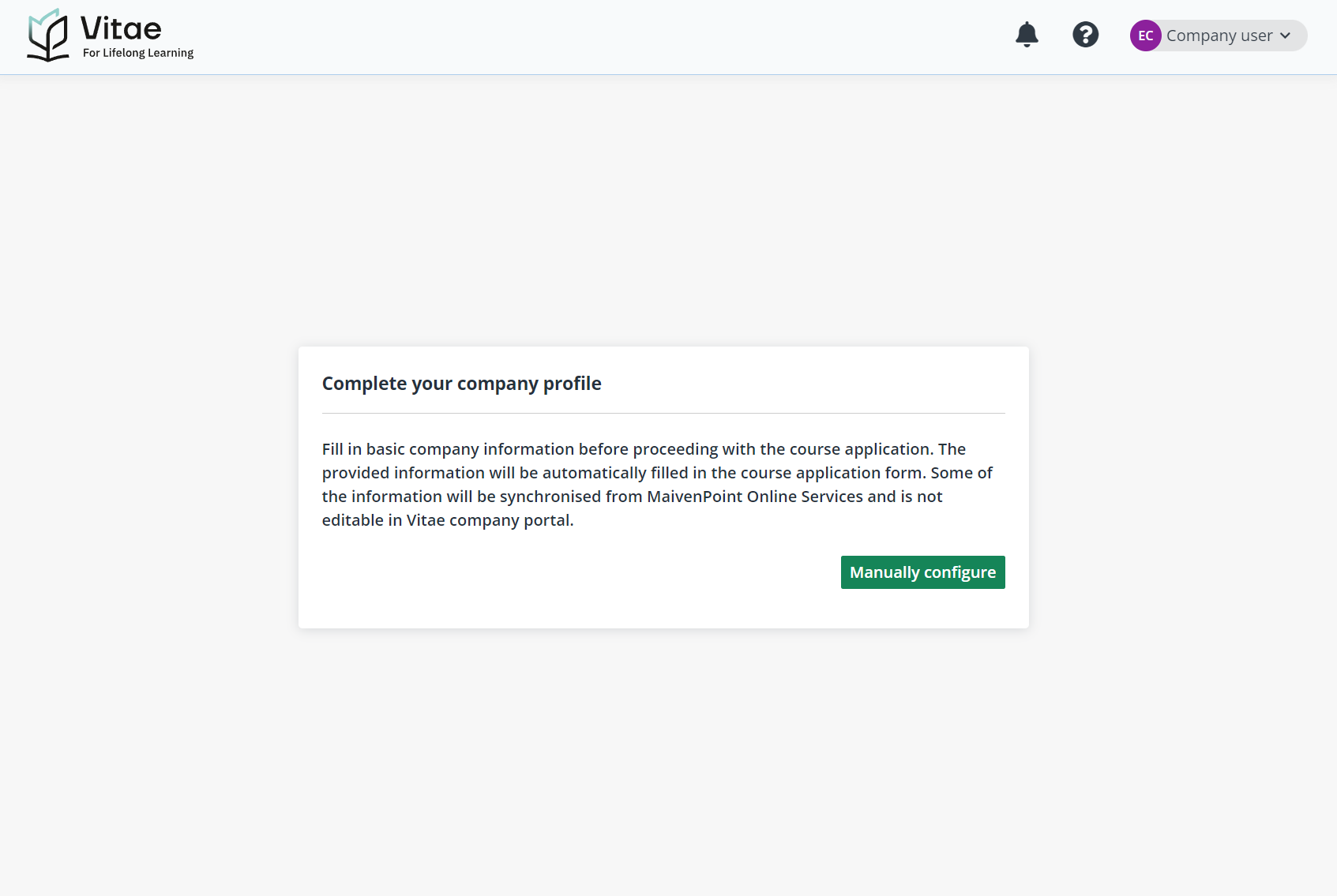
As the global administrator of companies’ training affairs, company administrators can sign up for their companies in Vitae and initialise company information setups.
To sign up for your company, company administrators can complete the following steps:
1. On the course page of Vitae, click Sign in in the upper right corner and go to the Sign in page of MaivenPoint Online Services.
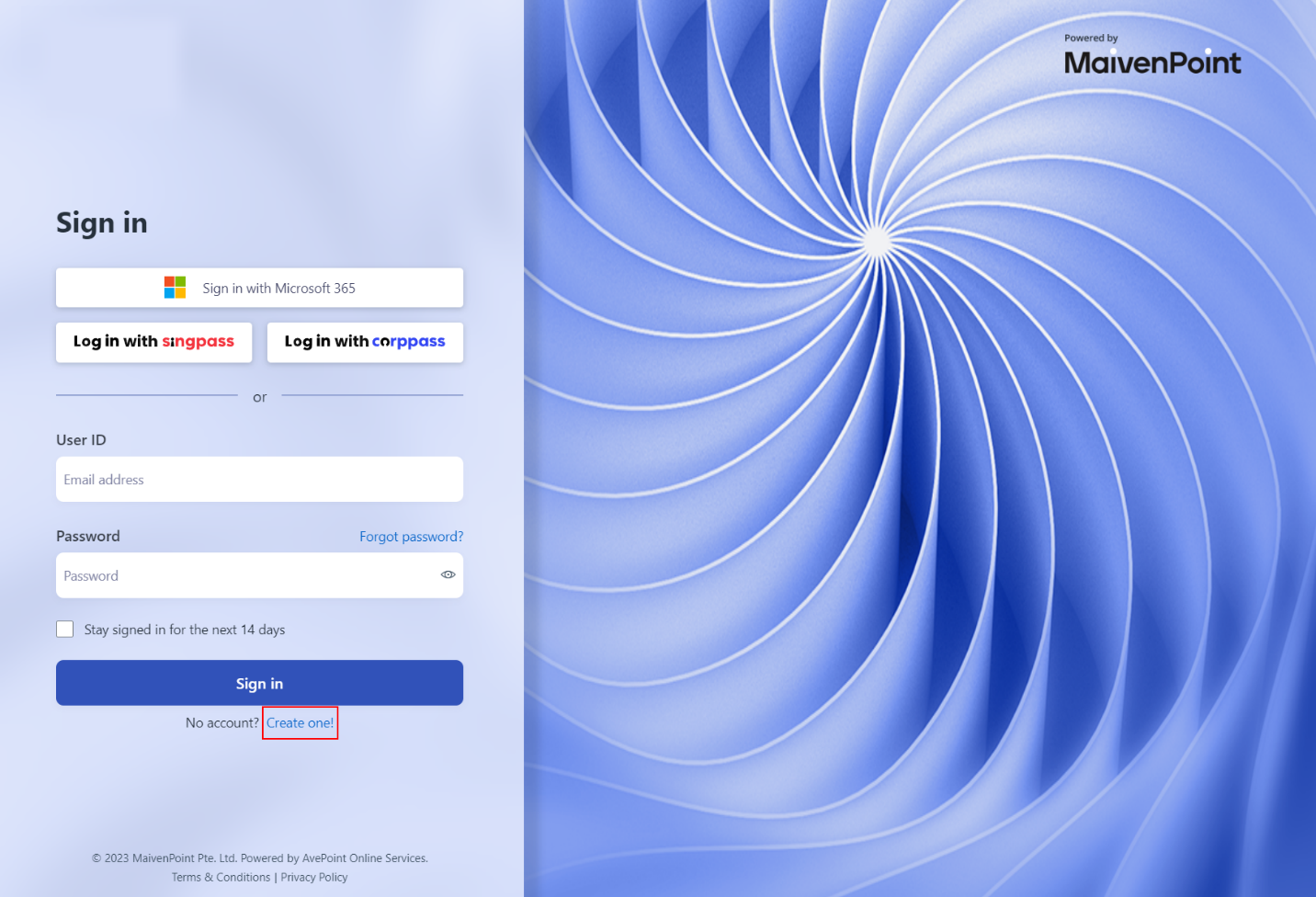
2. To add your company to Vitae and create an account, click Create one! and select Company as the role.
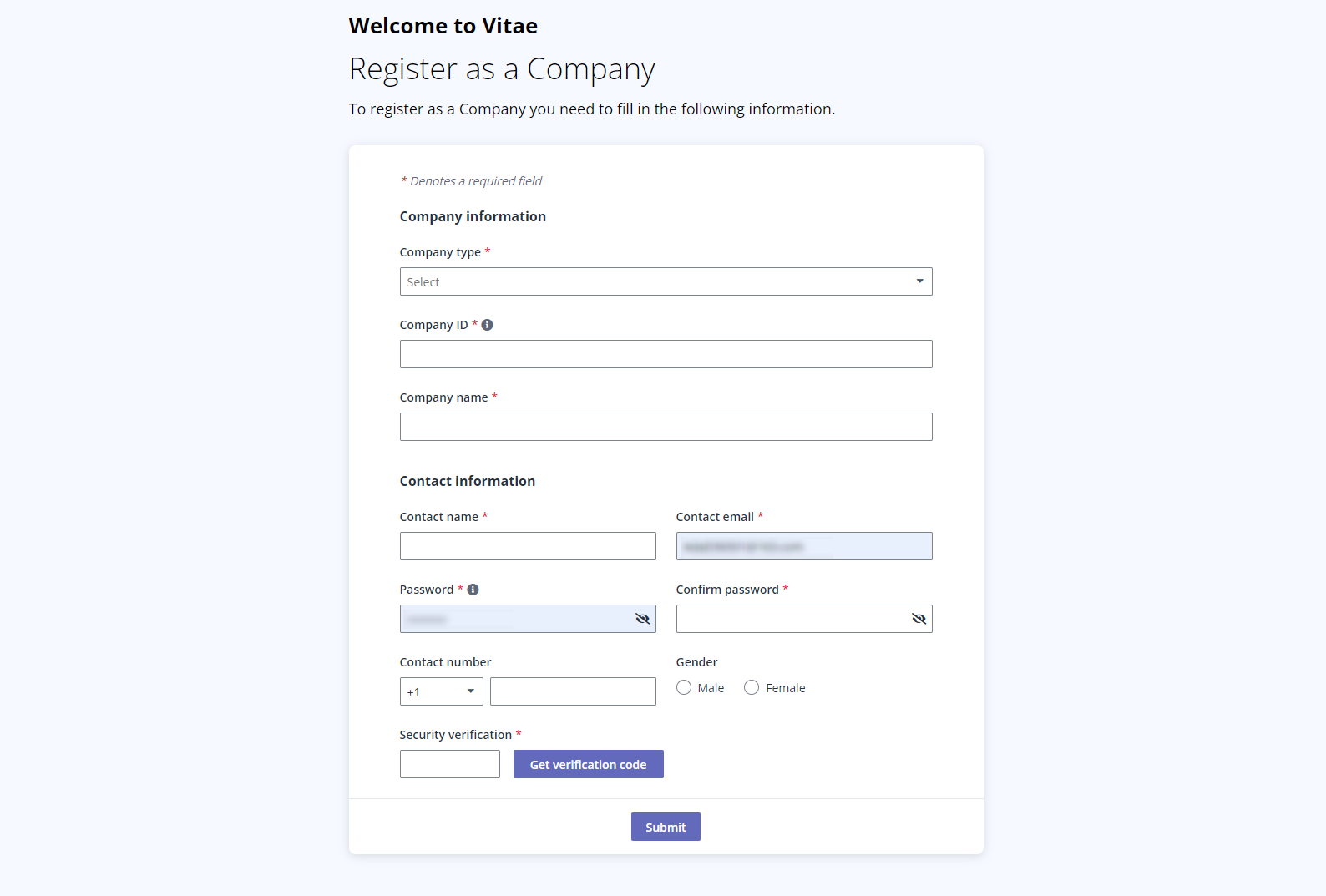
3. On the Register as a company page, fill in the basic information of your company and click Submit.
4. After the sign-up is verified by the administrator in MaivenPoint Online Services. An email will be sent to the mailbox used for the registration.
Additionally, to register a company, tenant administrators can navigate to MaivenPoint Online Services > Account and click Add company in the Company tab. After saving, an email will be sent to the contact email used for the registration.
By both methods of registering a company, additional information is required for course applications and sponsorship payments. Upon receiving the registration confirmation email, company administrators can proceed to initialising your company information for Vitae using the steps below:
1. Use the link in the registration confirmation email to access Vitae’s sign-in page and sign in with your credentials.
2. In MaivenPoint Online Services, click Vitae in Home > My apps.
3. Click Manually configure to fill in the required company information.