If your instructor sets up an exam as part of your course assessment, you can launch the Examena app and enter the closed-book exam directly through the LMS platform. Here’s how to start within your LMS—using Blackboard as the example.
1. Sign in to Blackboard with your account.
2. Click Courses on the left navigation, and click the course for which you have assessment.
3. Click the course assessment to view details. You’ll be brought to the embedded Examena page.
•If you have not installed Examena app, click Download to download and install it.
•If the app has been installed on your computer, click Continue.
4. Click Open in the confirmation message to open Examena app.
5. If you are informed that your exam requires a webcam, you can perform a webcam test to be well-prepared for the exam by clicking the Webcam test button in the upper-right corner.
6. You can check the exam information, read the instructions carefully and provide acknowledgement, and perform ID/face/environment verification (only required for closed-book exams with live proctoring) before the exam starts.
7. After the ID and/or environment verifications submitted, and/or face verification passed, you need to stay on the page and wait for the exam to start or open.
8. If the exam has a key enabled, you need to click Enter the key to start, enter the key provided by the invigilator to start the exam.
9. When the answering time or open time reaches, click Start now to take the exam. If the exam has reading time set, Start now is clickable when the reading time or open time reaches.
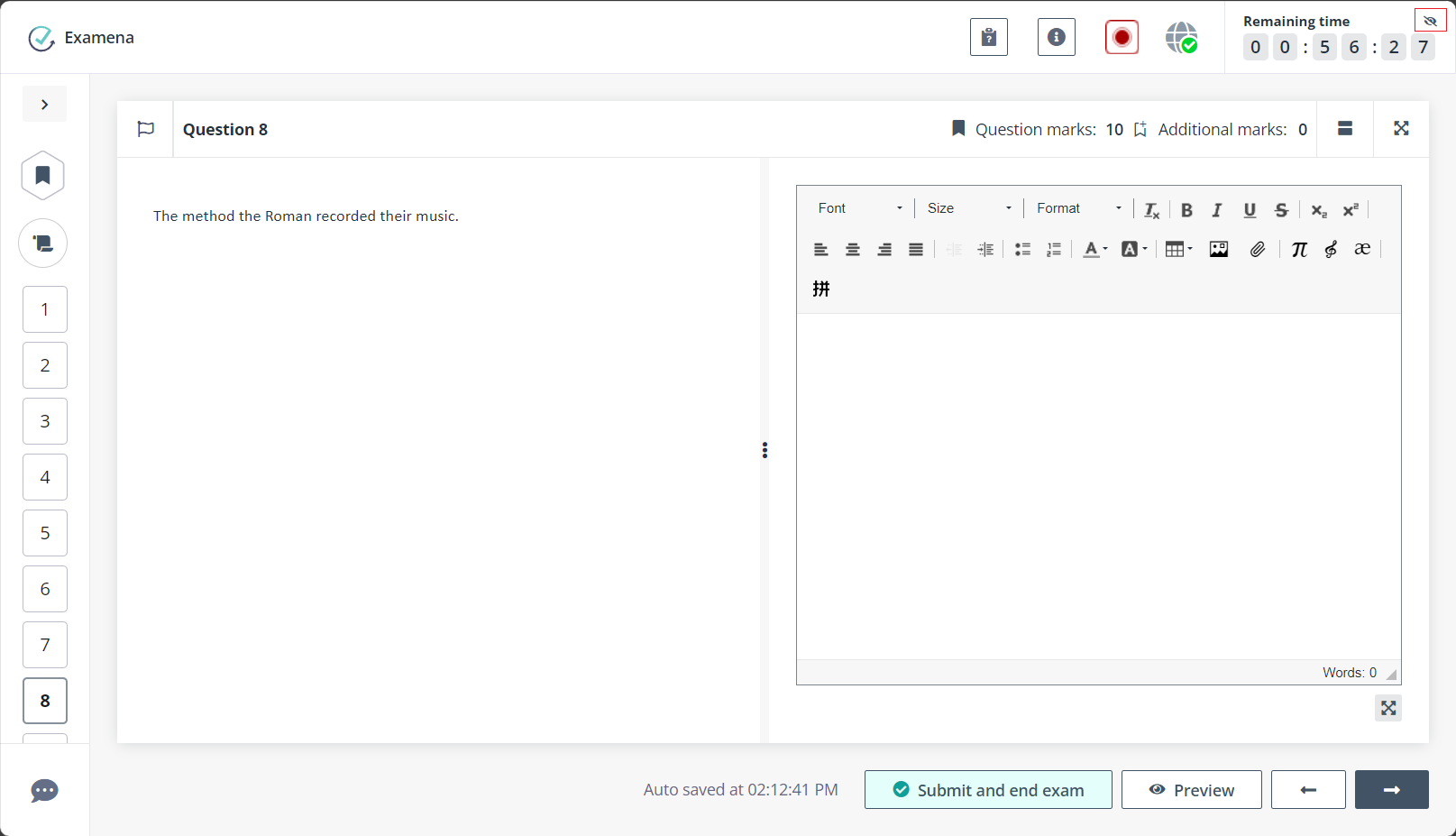
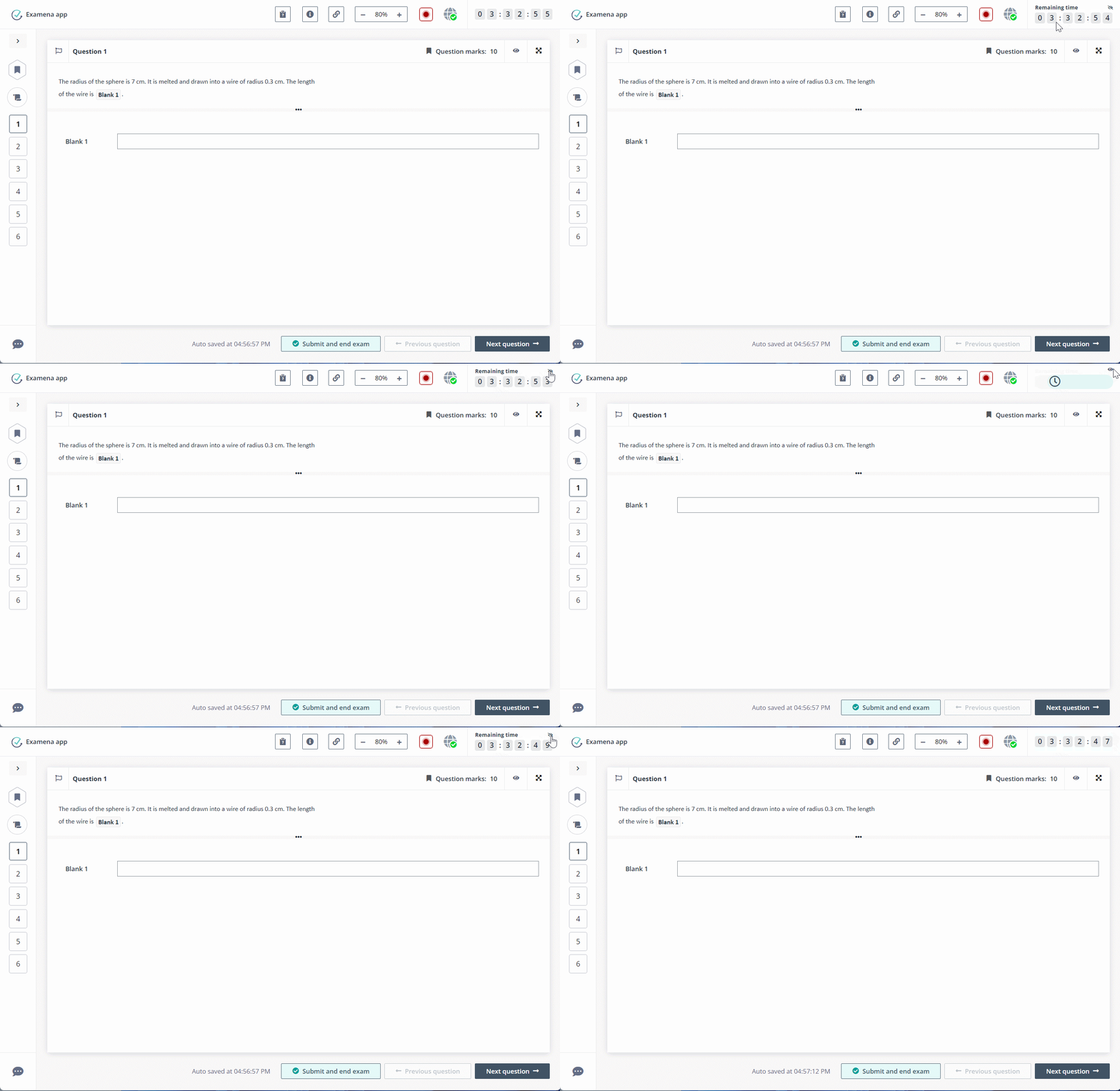
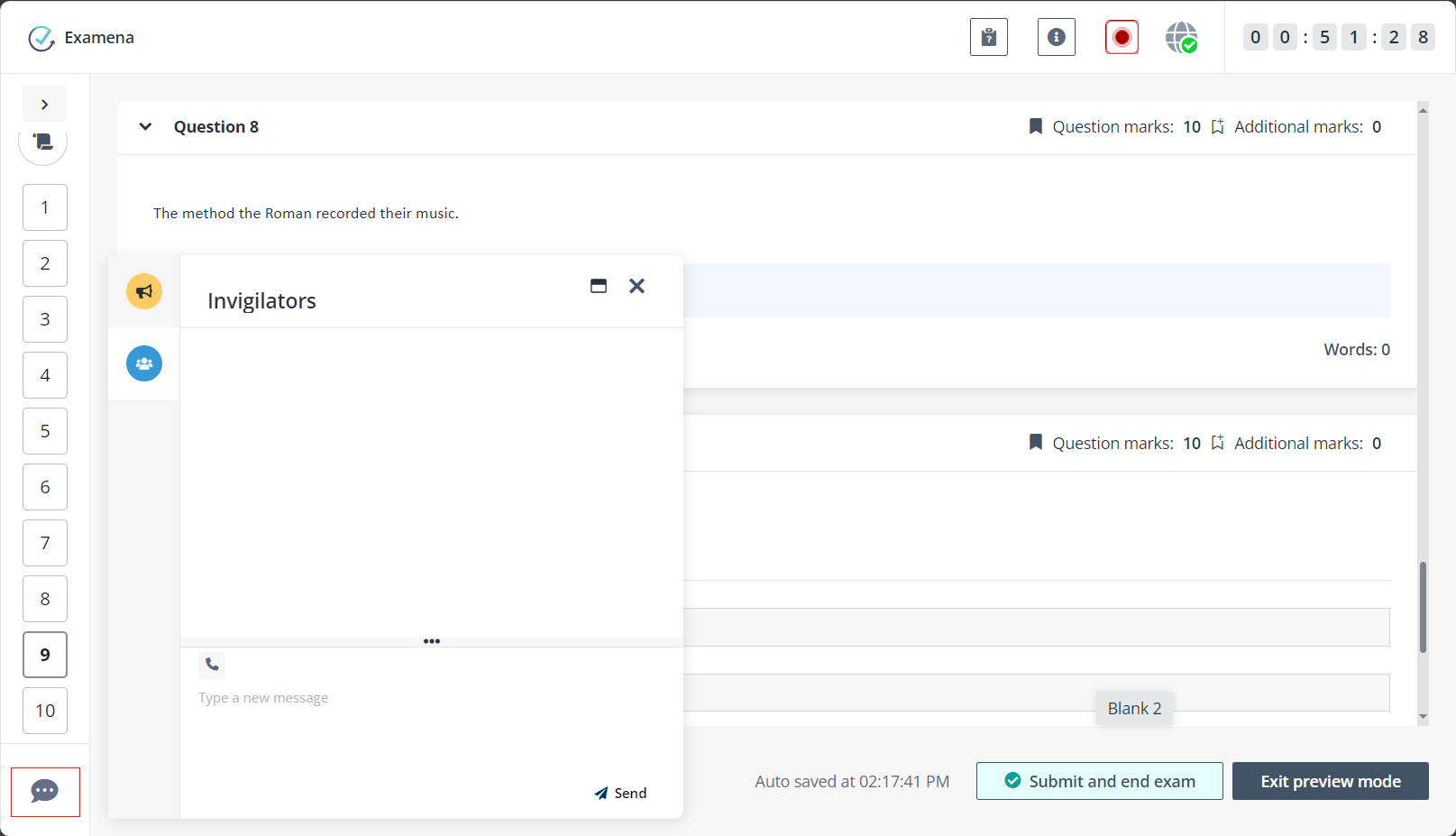
10. You must complete all of the questions before the countdown is over. To hide the countdown timer during the exam, you can hover your mouse over the timer and click the hide button. To check the remaining time again, you can hover the mouse over and click the show button.
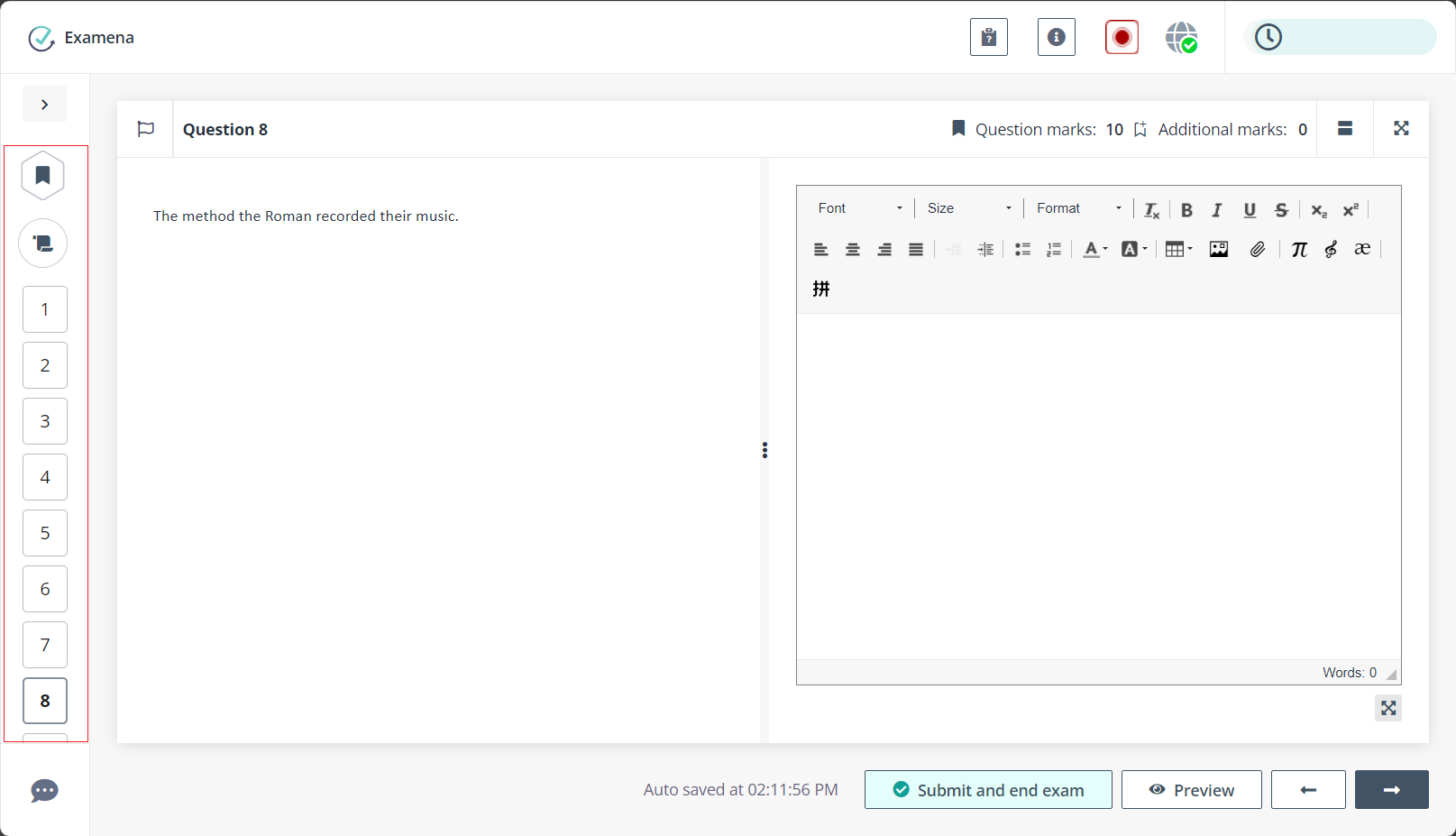
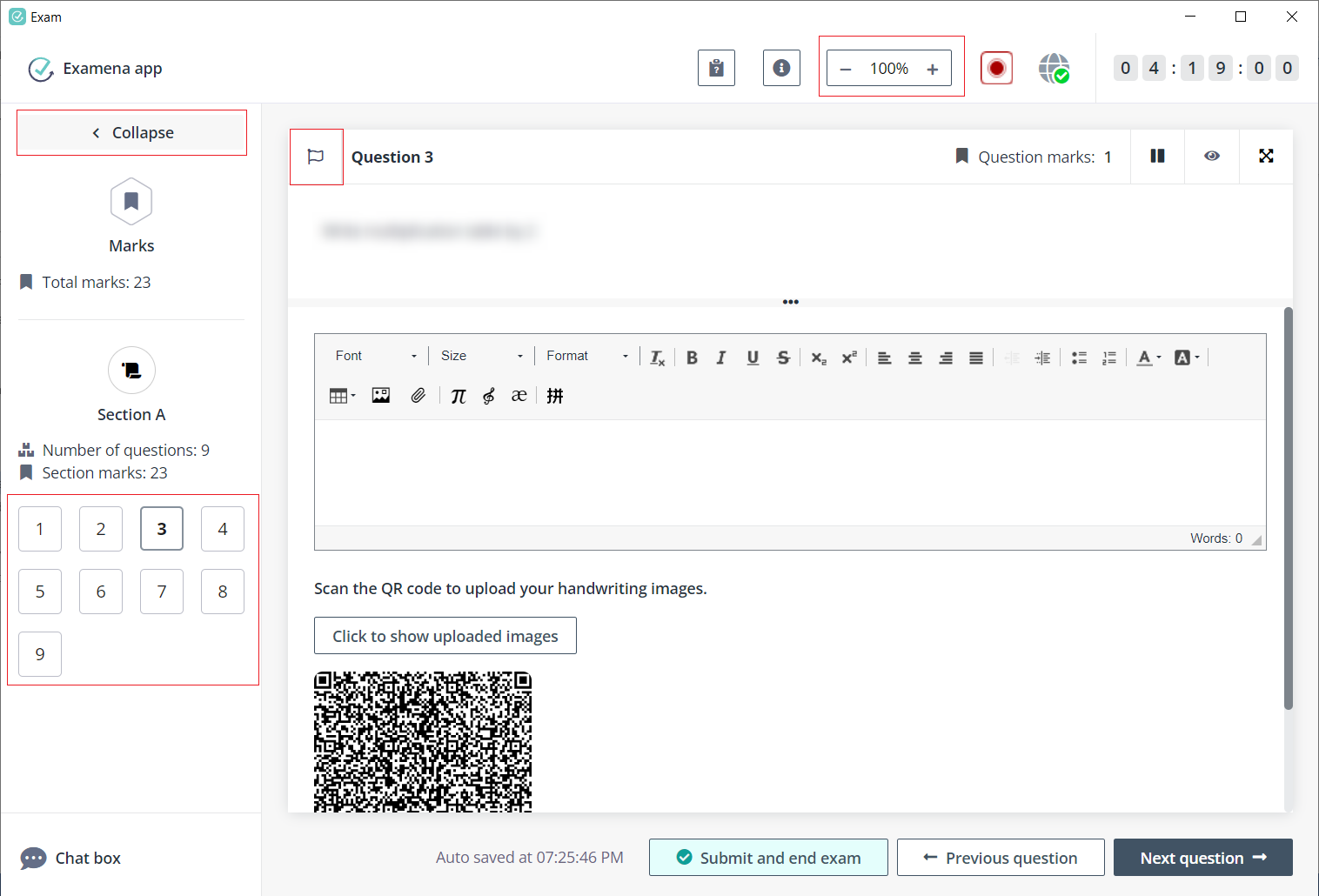
11. You can navigate among questions by selecting question indexes on the left. You have the option to flag questions to follow up later. For an enhanced view of the question content and a more extensive response area, you can collapse the left panel. Additionally, you can adjust the text size by zooming in or out.
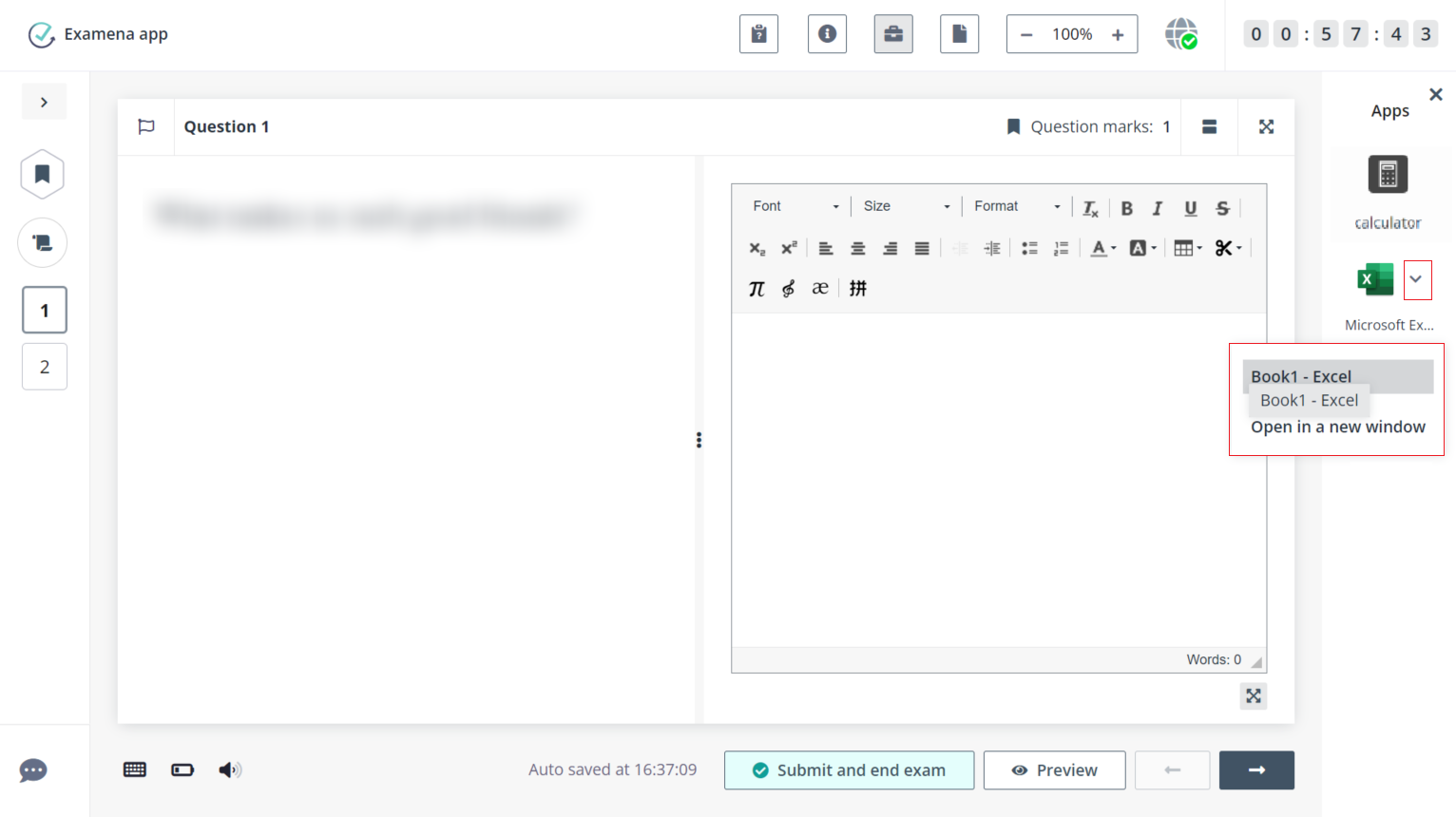
12. You can also view and use the applications or links that are authorised for candidates during the exam, if configured.
Use the authorised links (if any) during the exam.
Use the authorised apps (if any) during the exam.
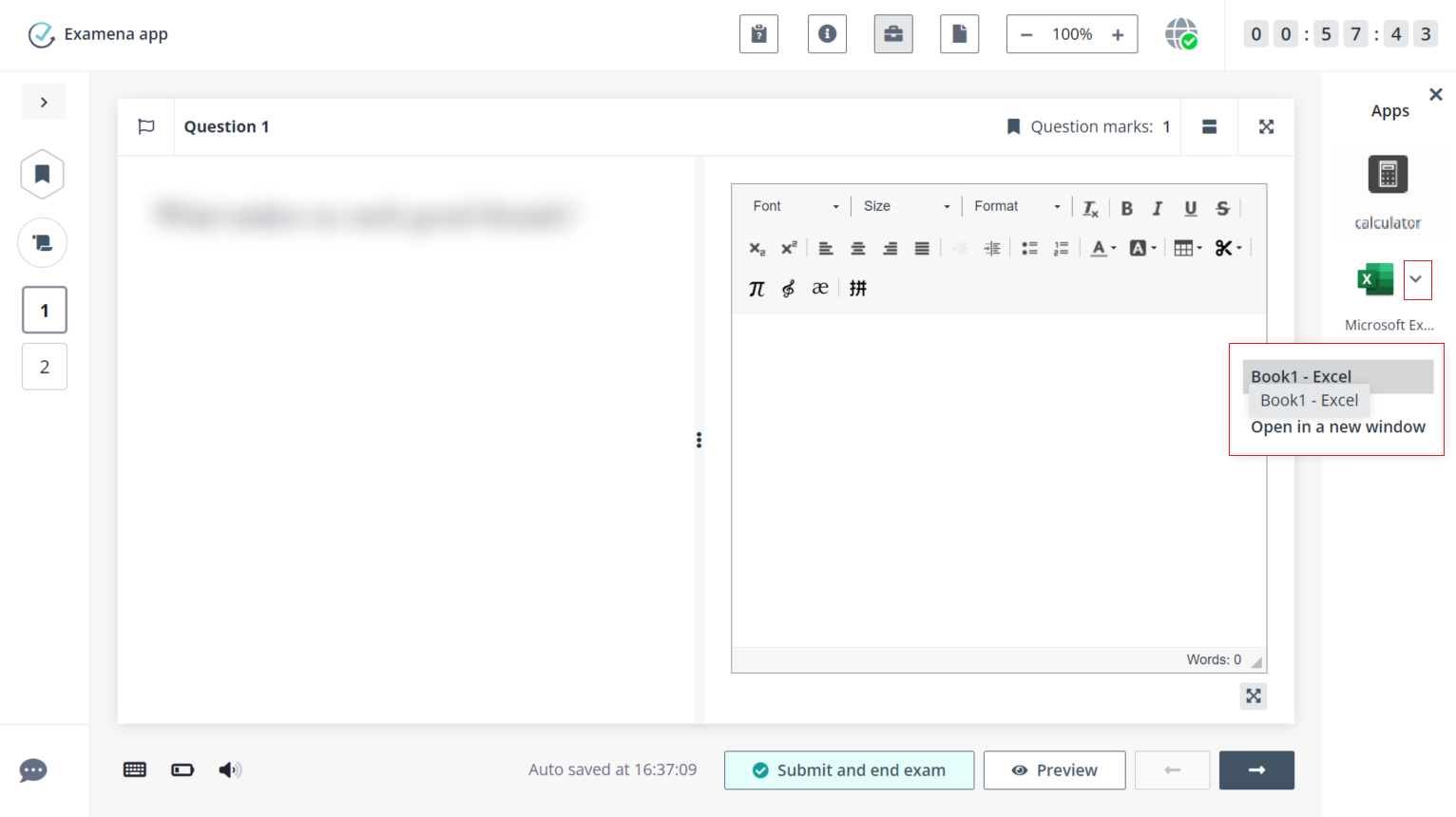
Choose an opened file to view.
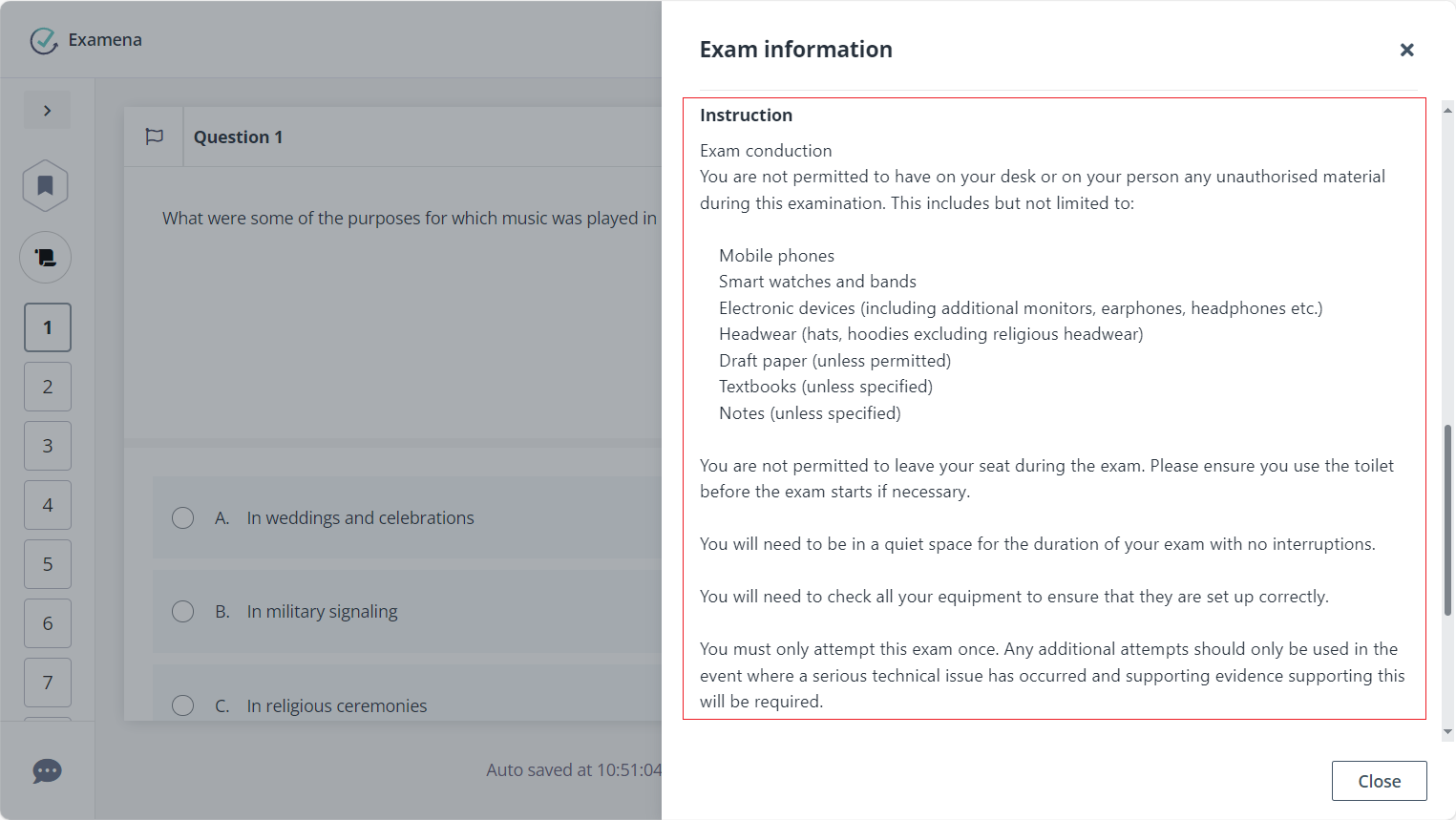
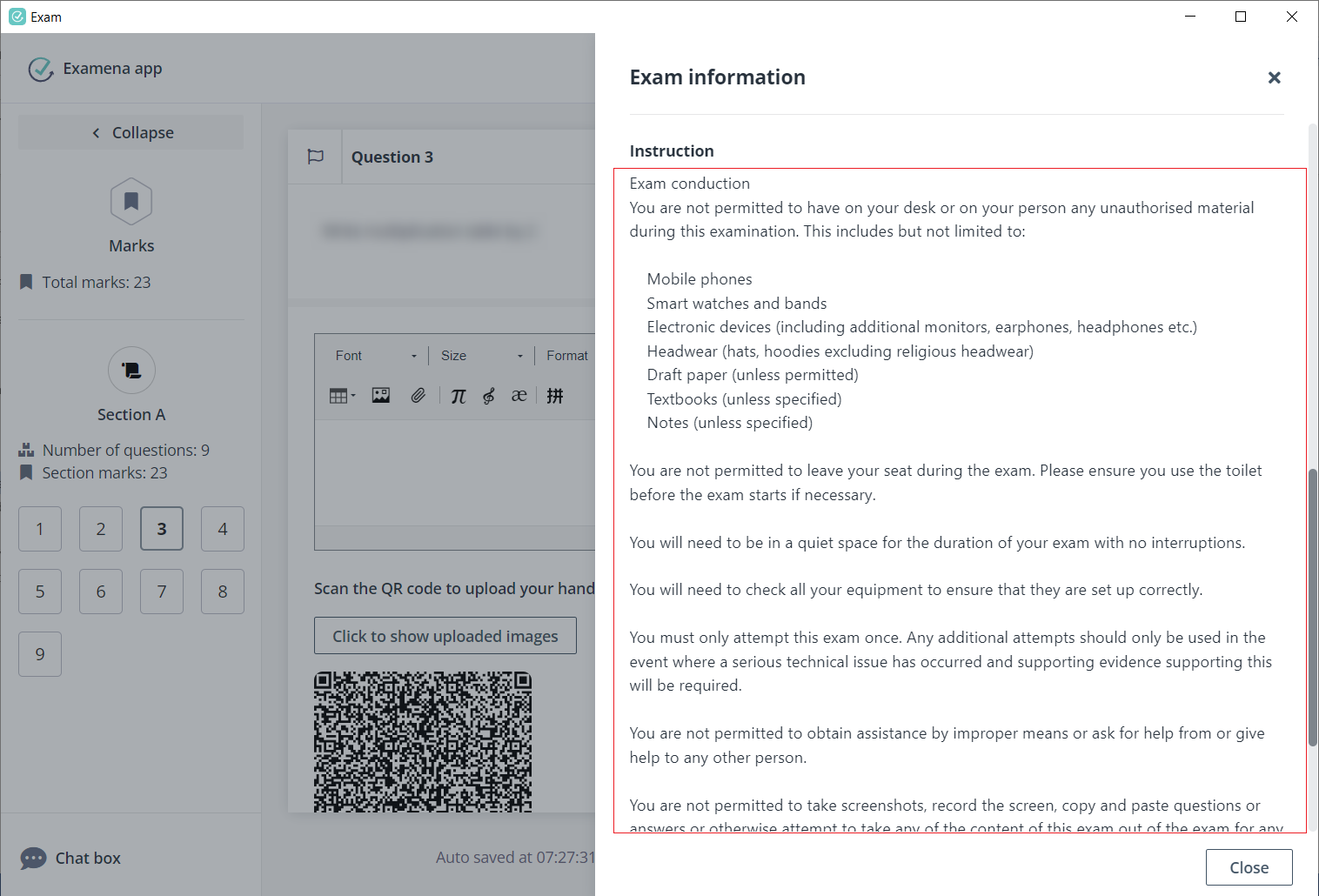
13. You can find the exam instruction when checking the exam information to check the regulations and rules of the exam.
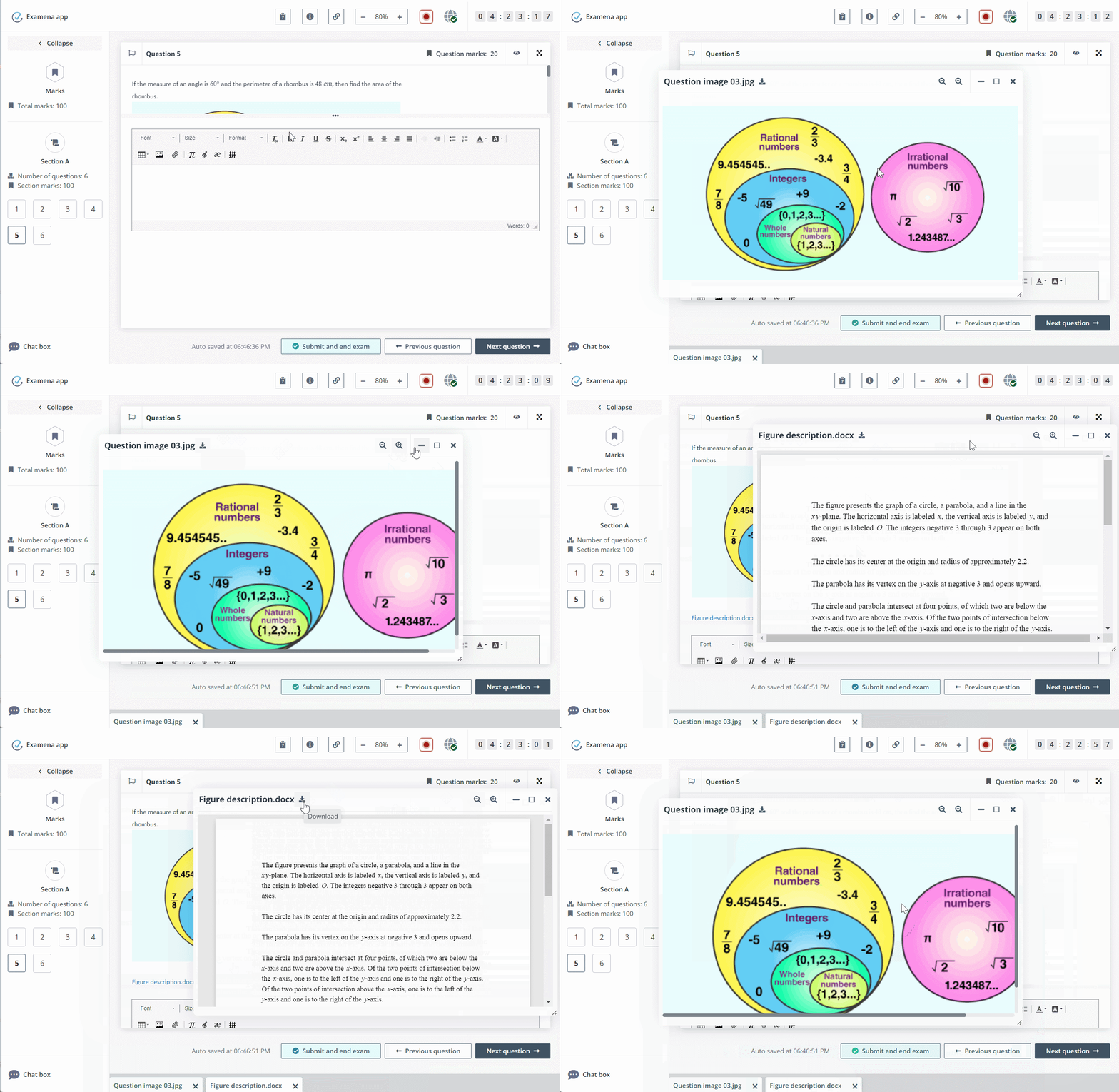
14. You can preview reference files of questions when you answer the questions. You can minimise or maximise the preview window of the file. After you minimizes the preview window, the file name will be displayed in the bottom of Examena app. You can click the file name to preview the file again.
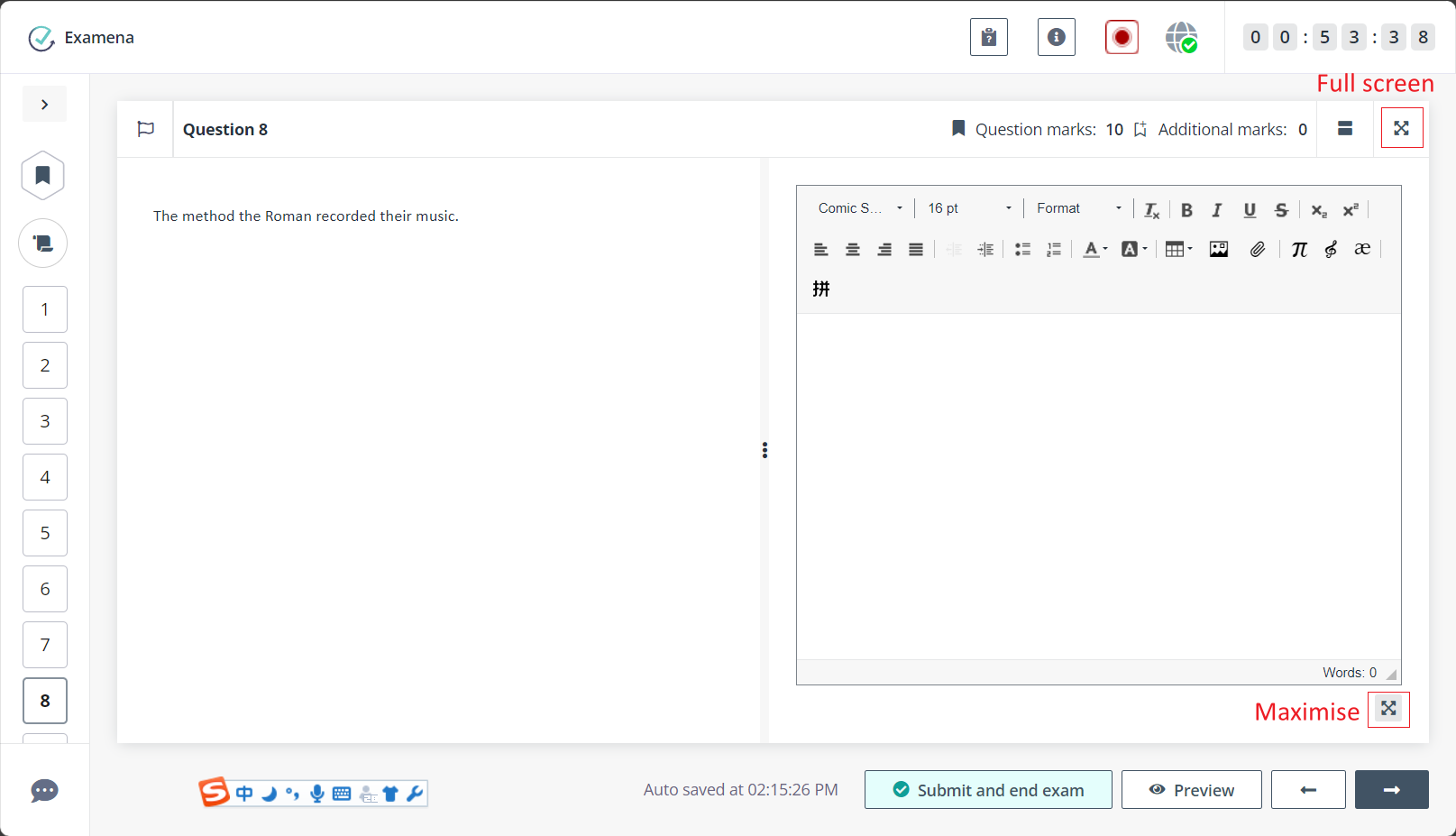
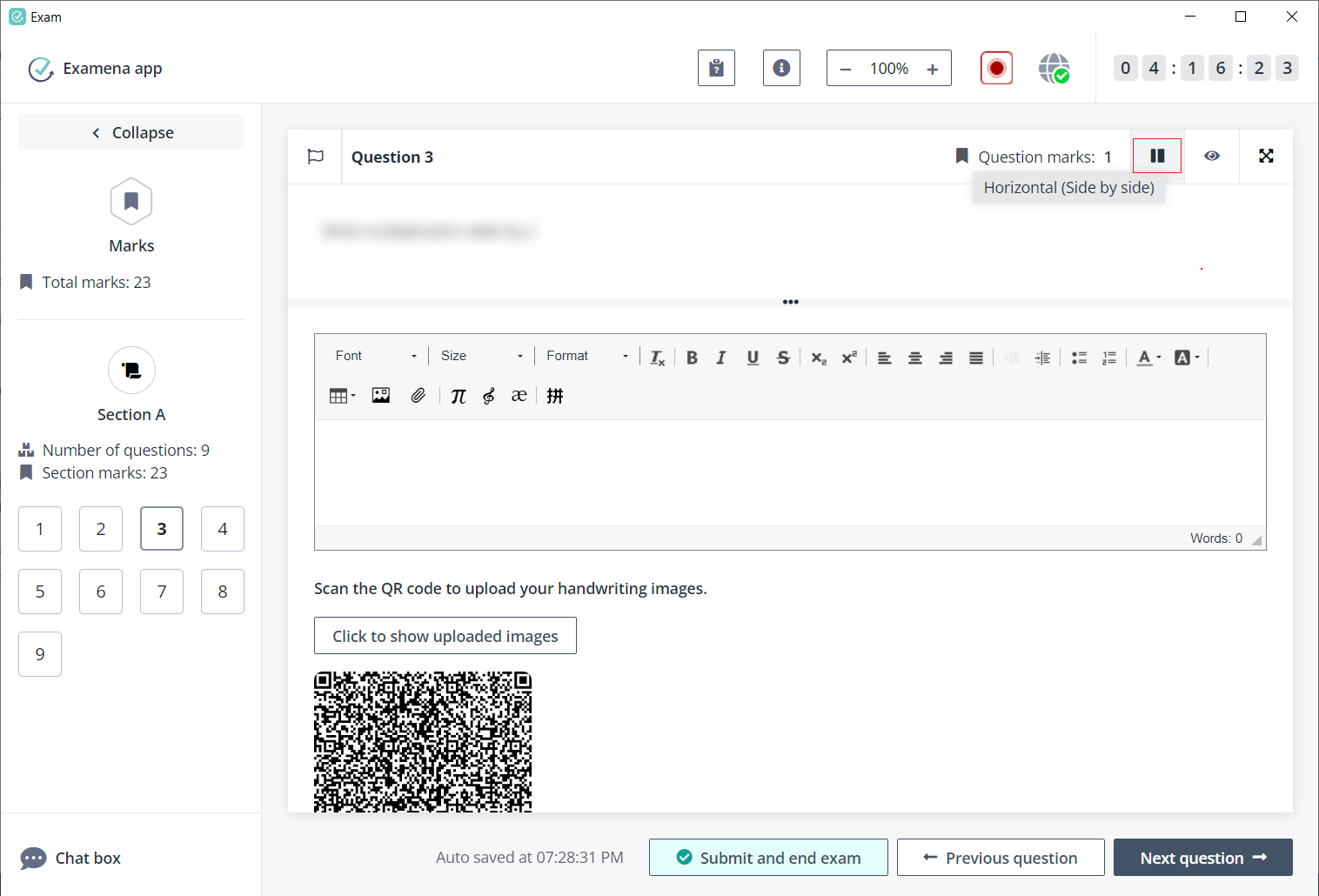
15. You can enter the full screen mode to concentrate exclusively on one question at a time.
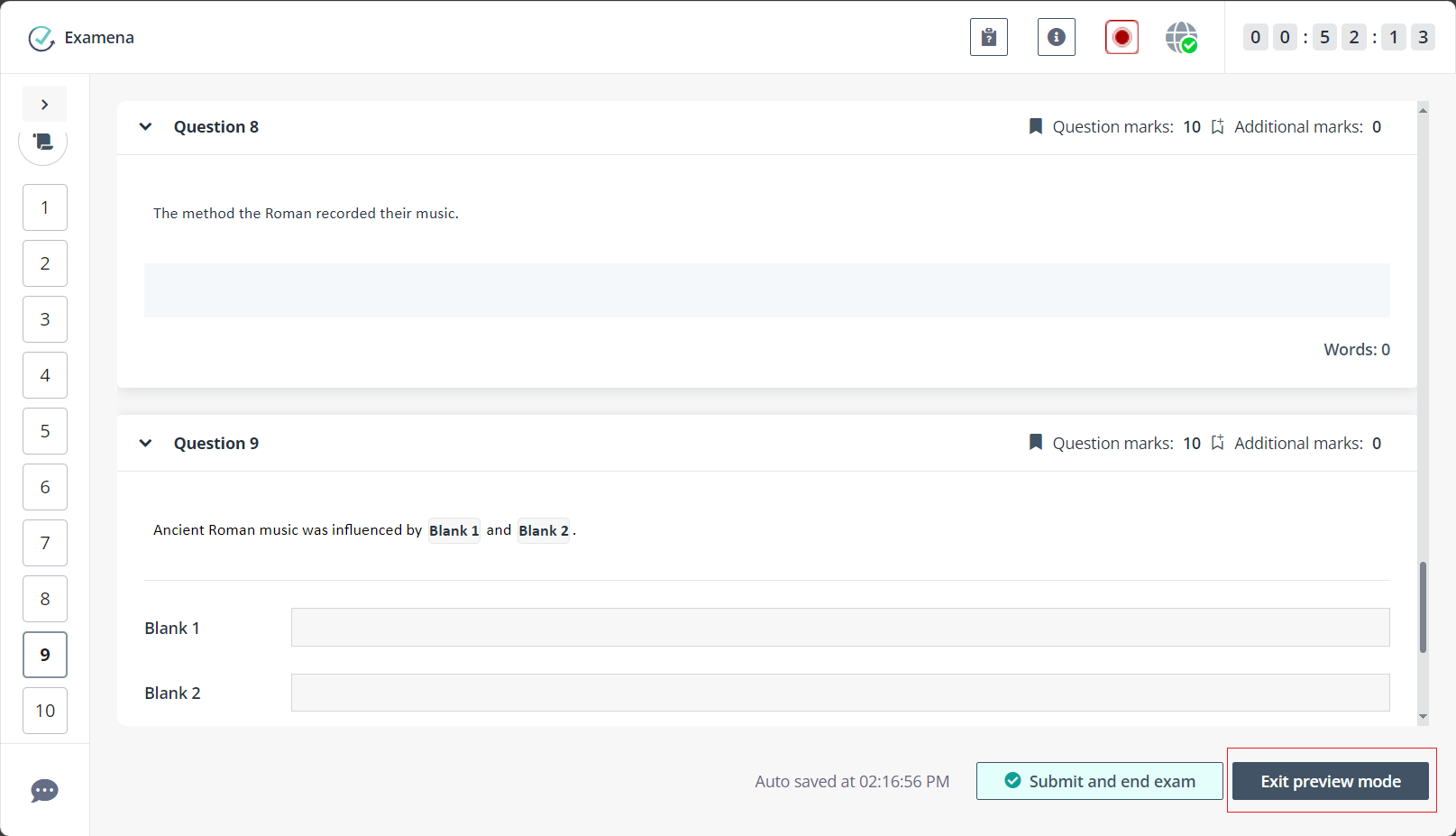
In full screen mode, you can view the remaining time at the bottom of the screen and navigate between questions by clicking the arrow buttons to switch to the previous or next question.
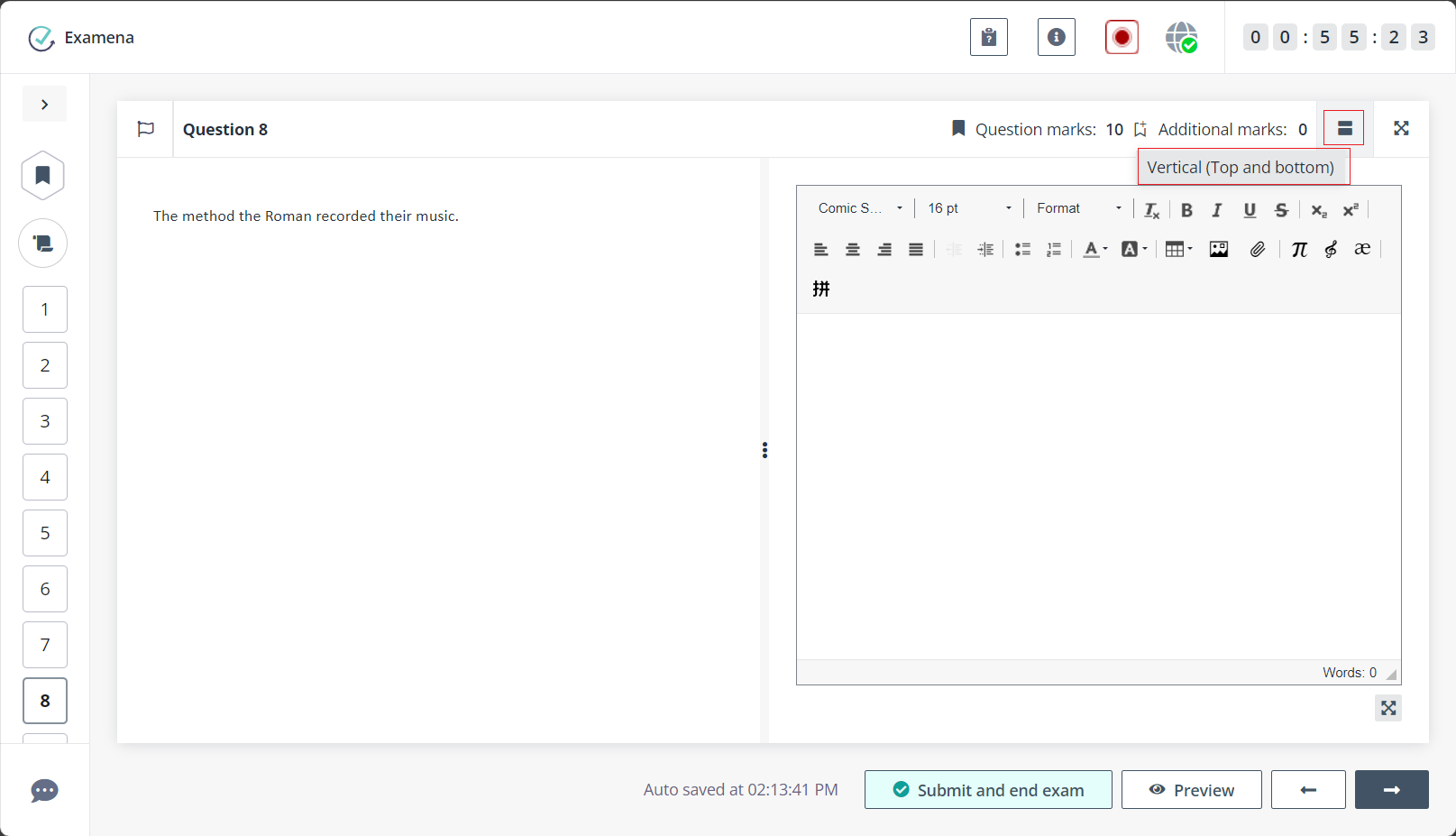
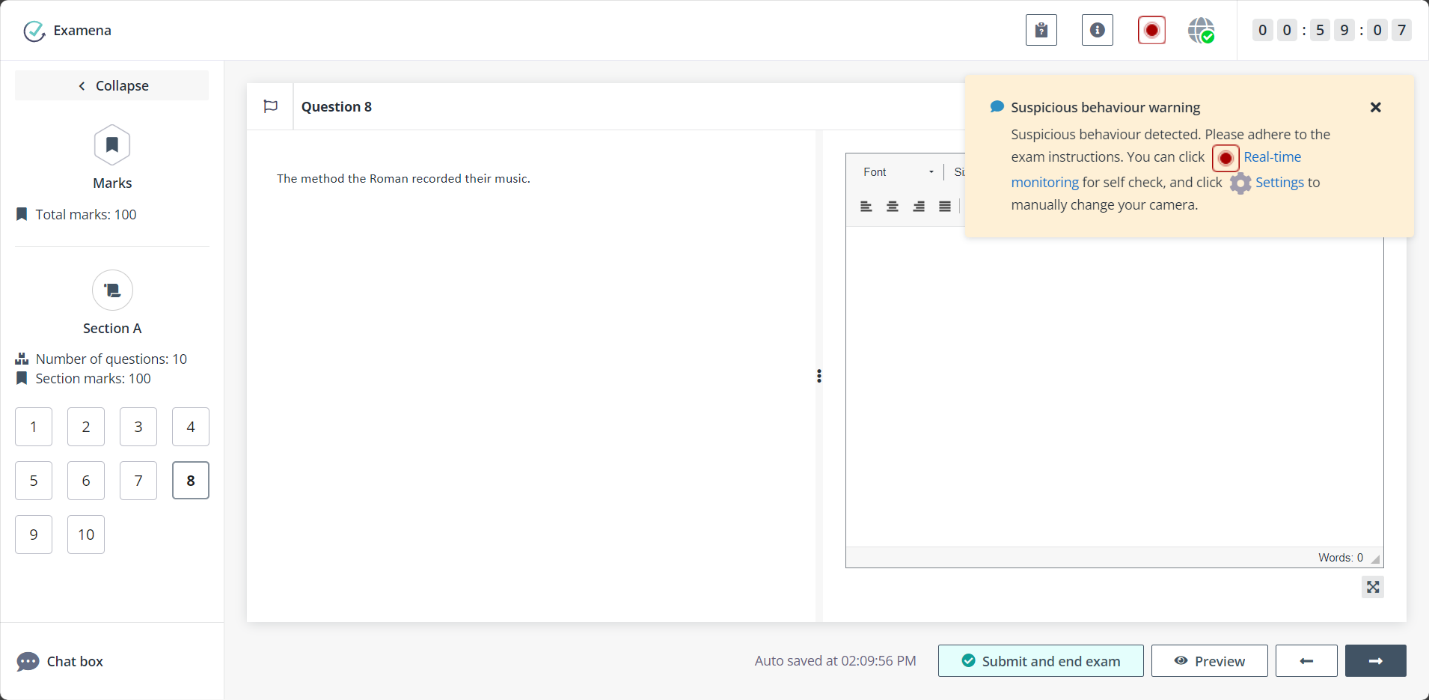
16. You can switch between the vertical (Top and bottom) and horizontal (Side by side) views to change the layout of question content and response area.
17. You can adjust the display ratio between the question content area and the response area by hovering your mouse over the three-dot icon and dragging it up and down. You can also expand the response area of Essay questions by dragging a sizing handle away from the centre.
18. For Essay questions, you can click the Maximise button in the lower-right corner of the response area to maximise the response area to focus on writing detailed answers.
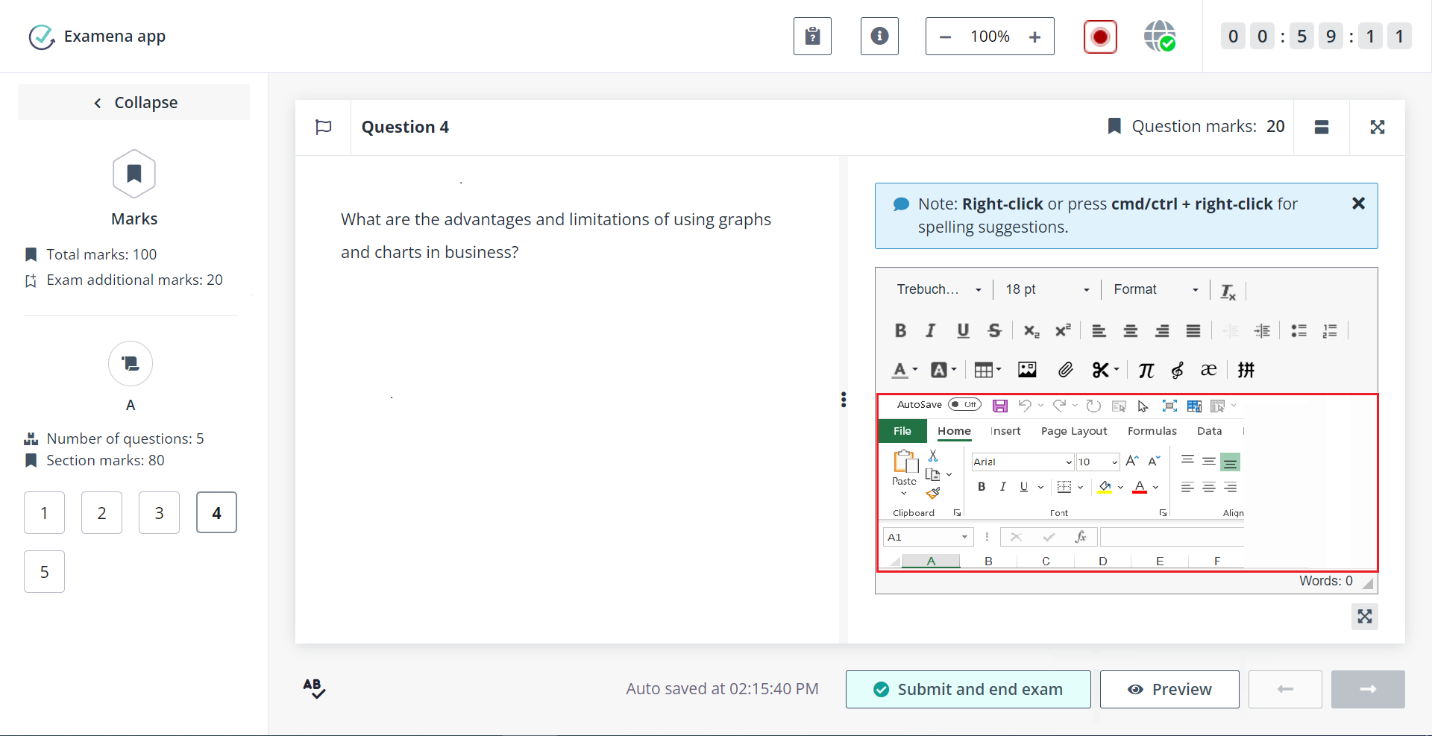
You can take screenshots of Examena app or select Send Examena app to back to capture screenshot from other open applications and directly insert them to the response area.
Take screenshots.
The screenshot is automatically inserted to the response area.
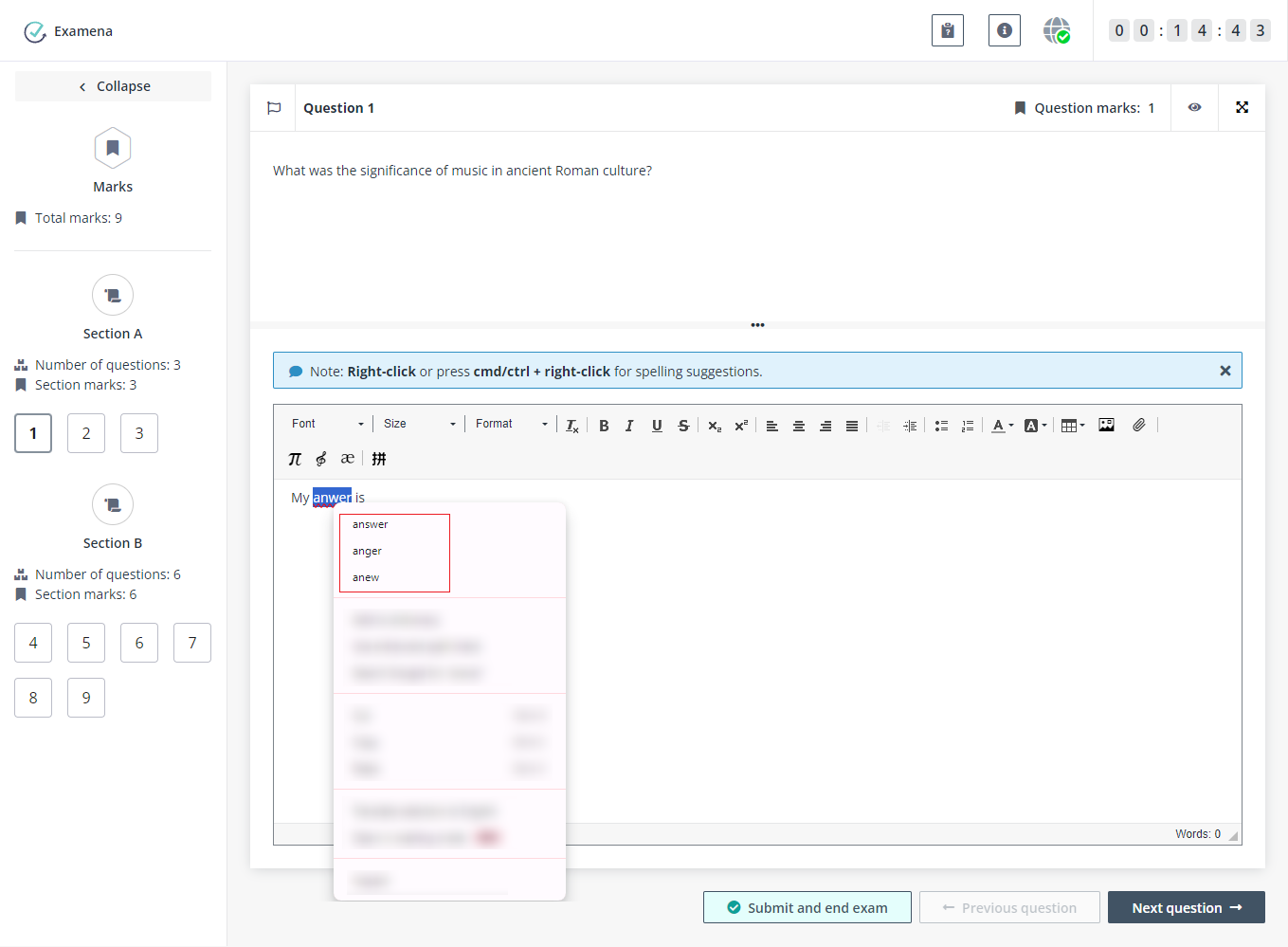
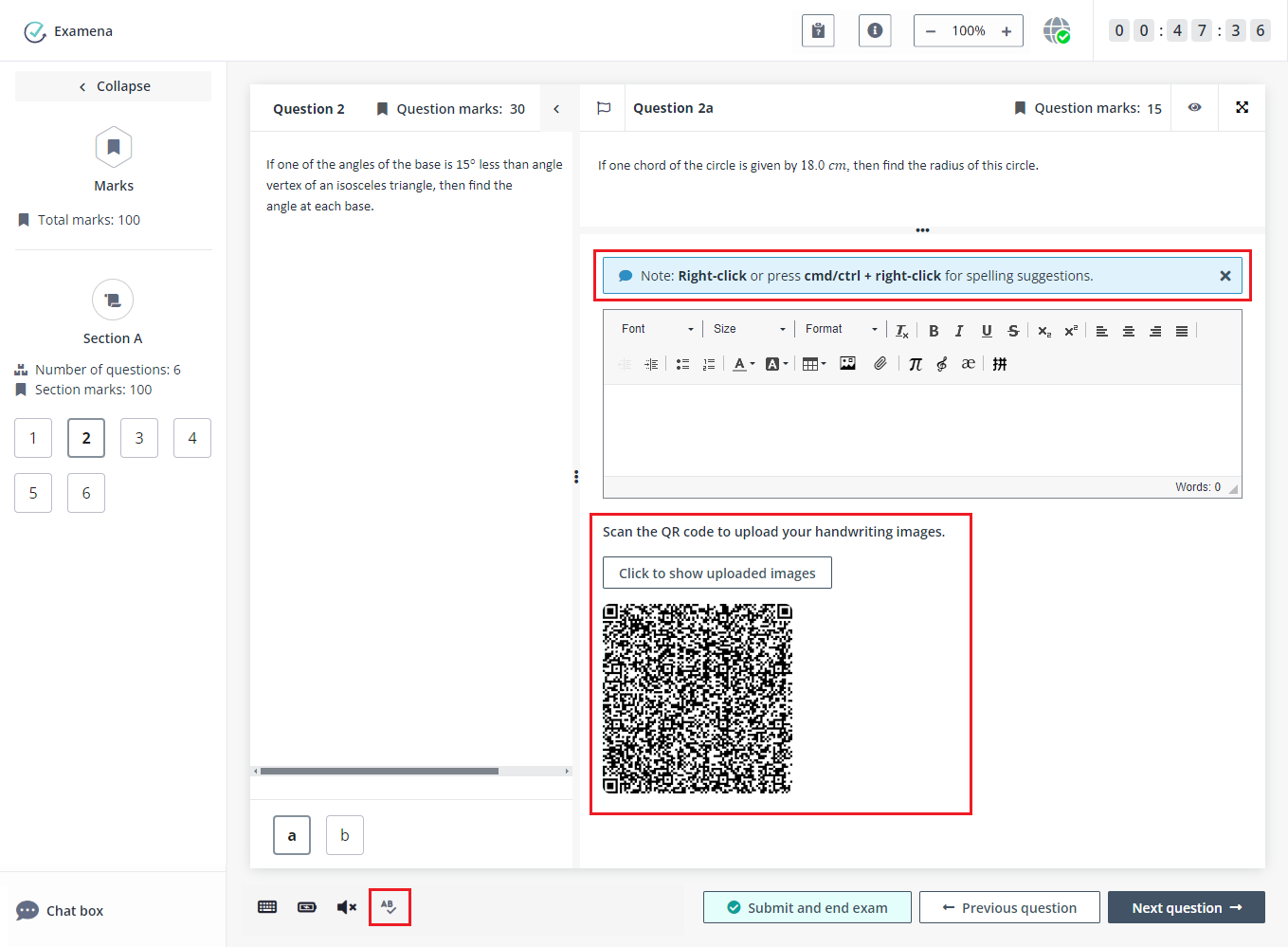
19. If spell check is enabled, the system will check spelling as you type. You can also view spelling suggestions and select the language for which to use spell check by clicking the spell check icon.
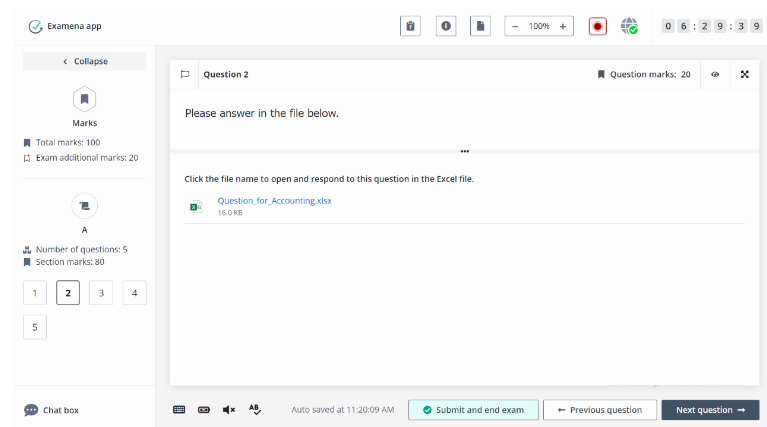
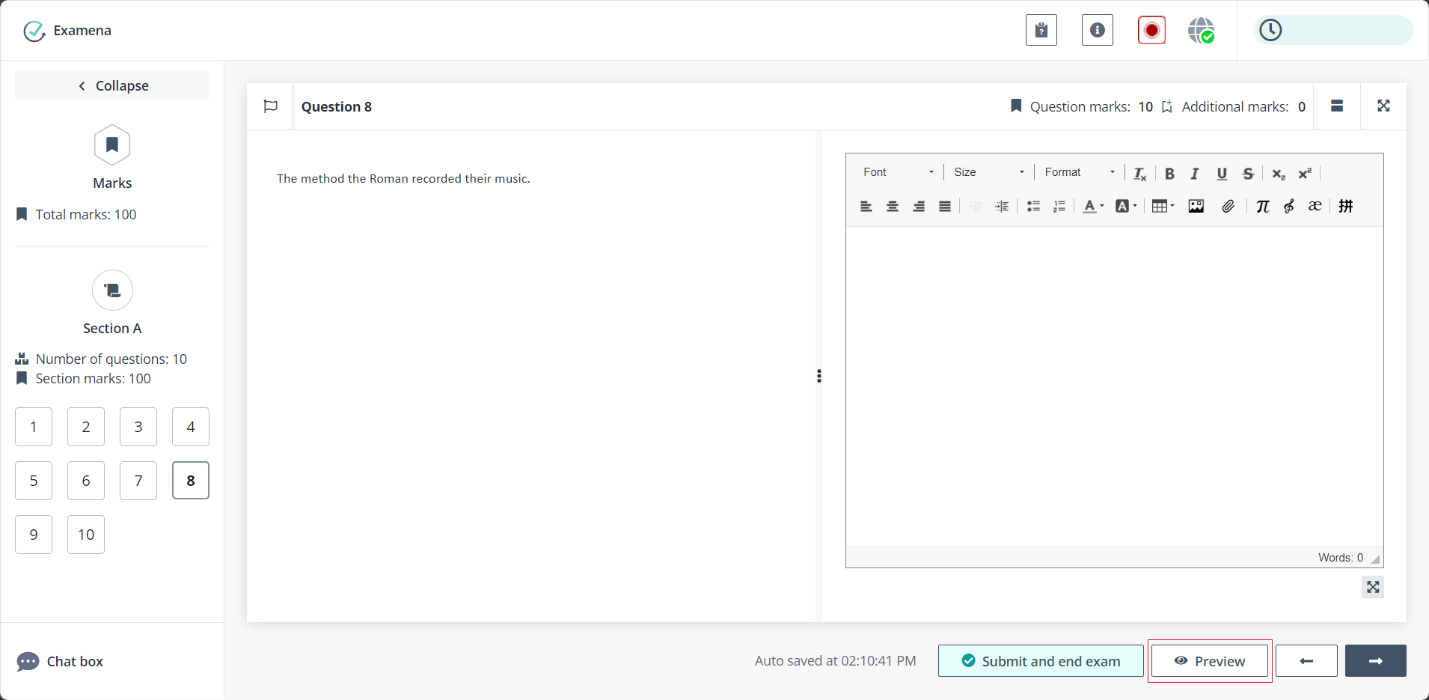
20. You can click the Excel file in the question content of Secured Excel questions to open the file. After answering to the question in the file, you can close the Excel file directly as changes are saved automatically every 60 seconds.
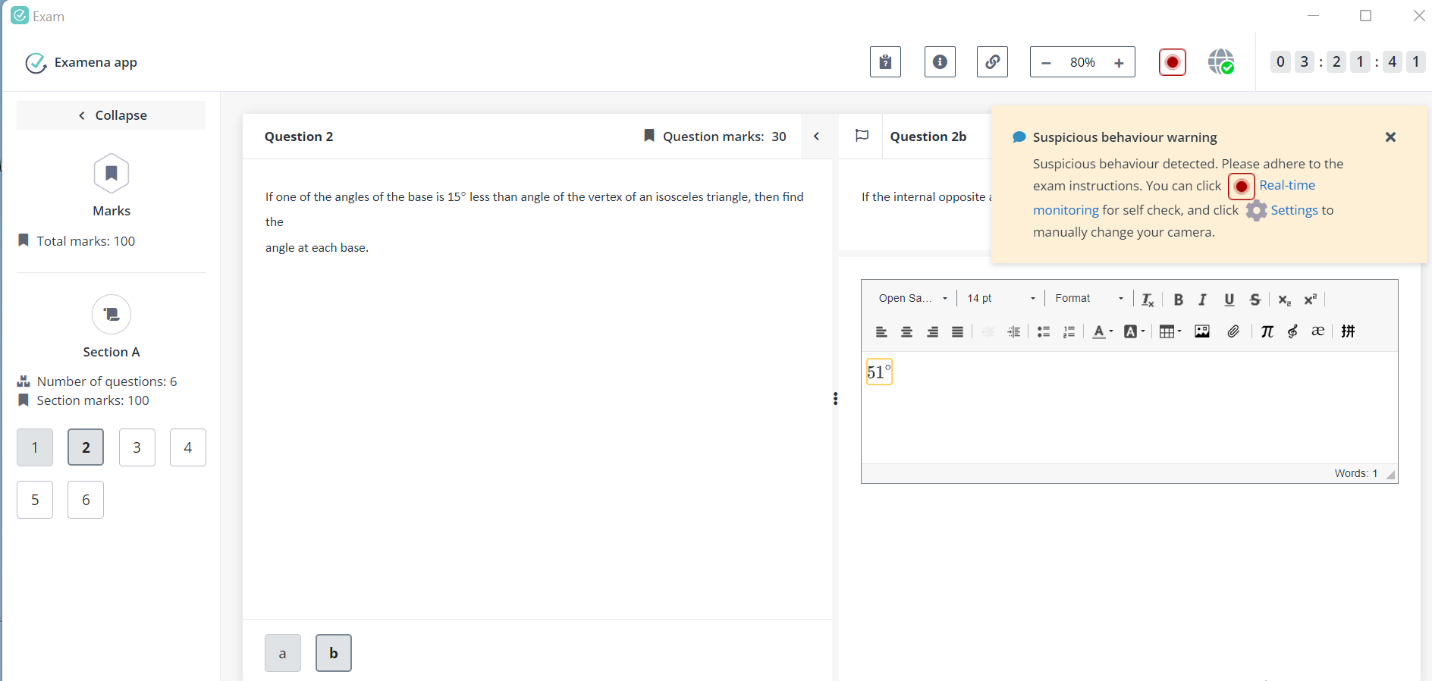
21. You can click the Word file in the question content of WordDoc assignment questions to open the file. You answer to the question in the file. You can close the Word file after saving your changes.
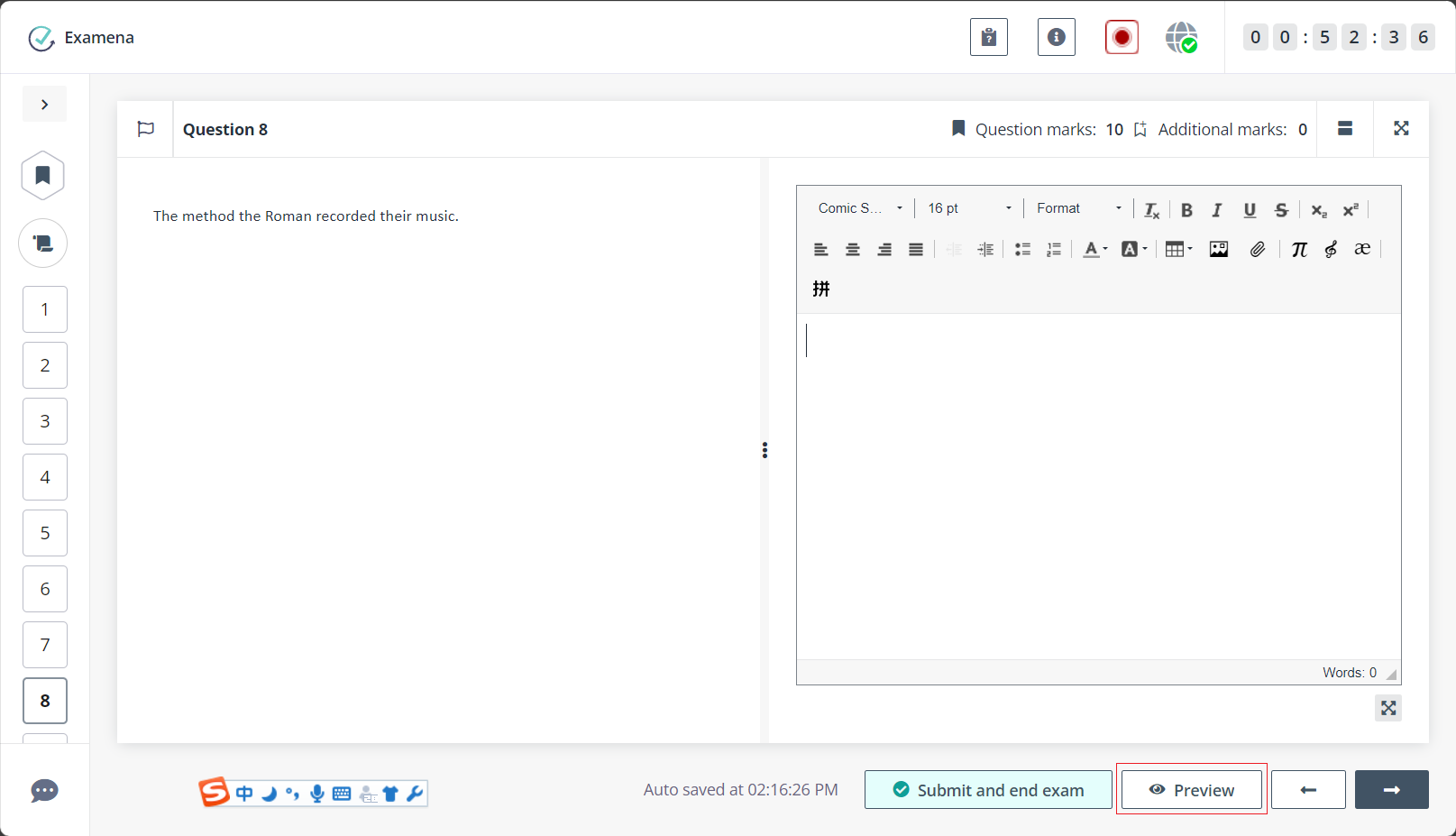
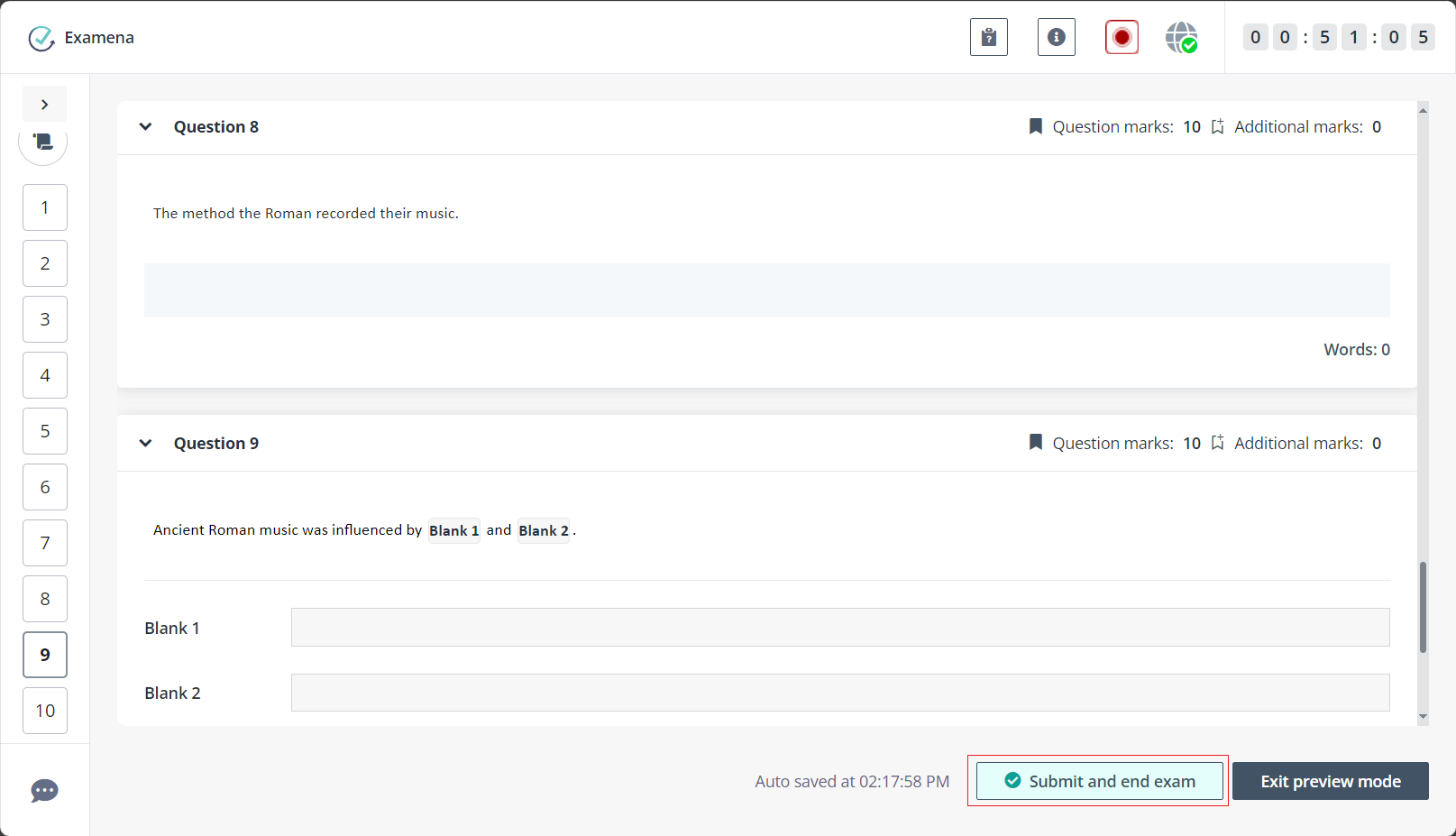
22. You can click Preview in the lower-right corner to have a preview of all questions on one page to understand the structure and identify questions that may need more time before answering to the questions, preview the files you uploaded for Essay and File upload questions, and have a final check before submitting your answers.
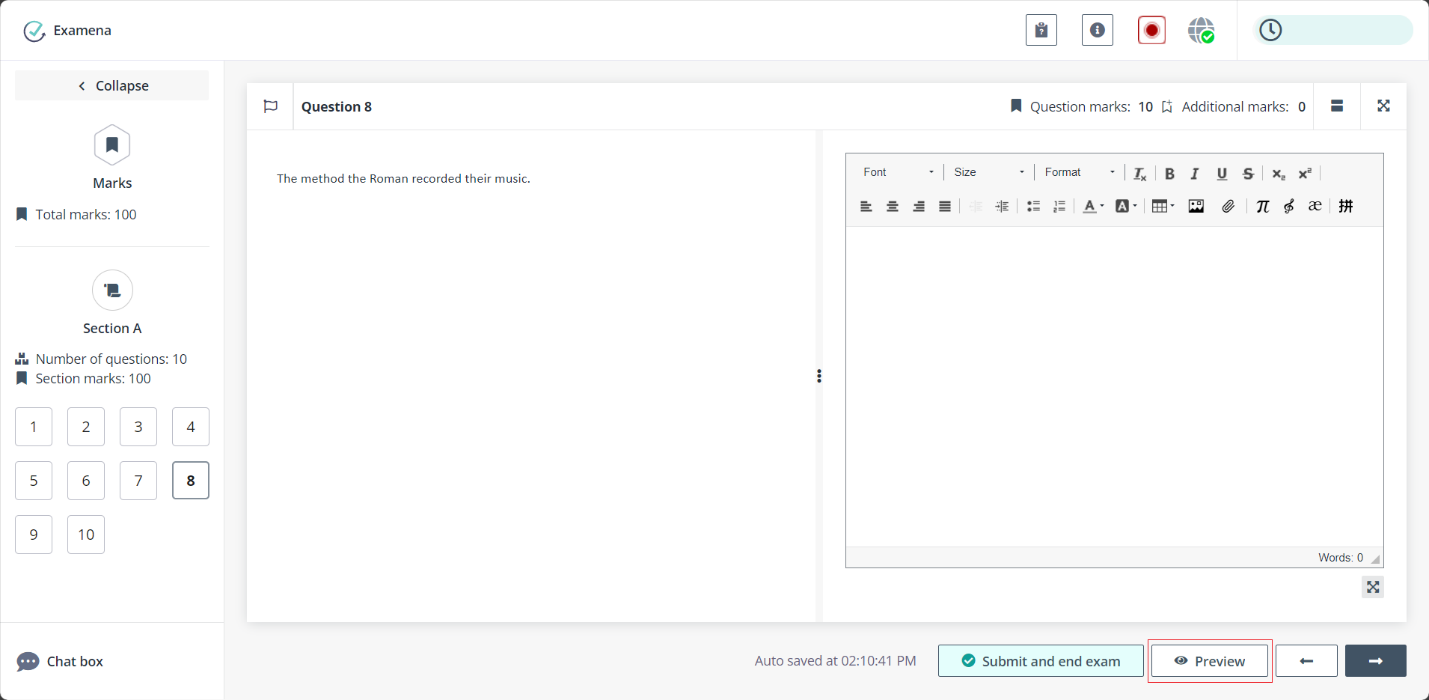
23. If the exam is configured to not allow candidates to go back or view previous questions, a warning message will appear after you clicks Next question. You cannot navigate among questions on the left pane.
24. After reviewing all of the answers, click Submit and end exam to submit the paper and end your exam. If you did not finish all questions when the time is up, the exam will be automatically ended.
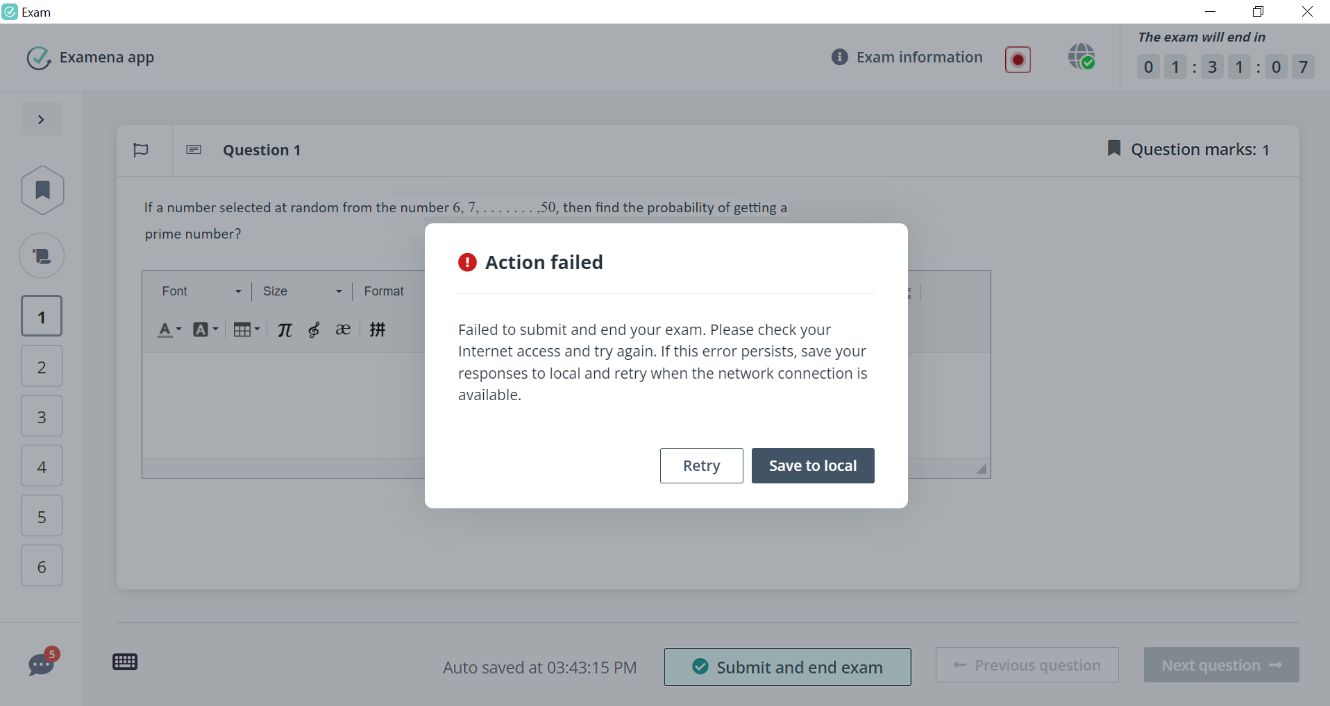
25. If the answers failed to be submitted due to network connection, you can click Save to local to save your answers locally. When the network connection is available, you can click Retry to submit the local answers again.
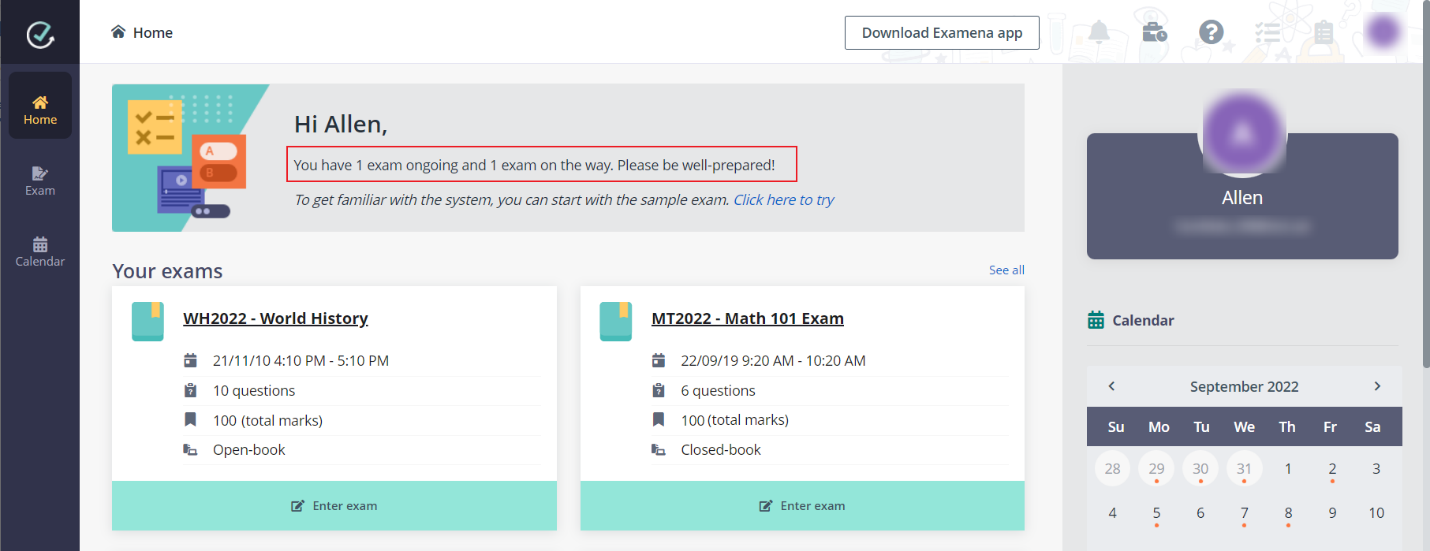
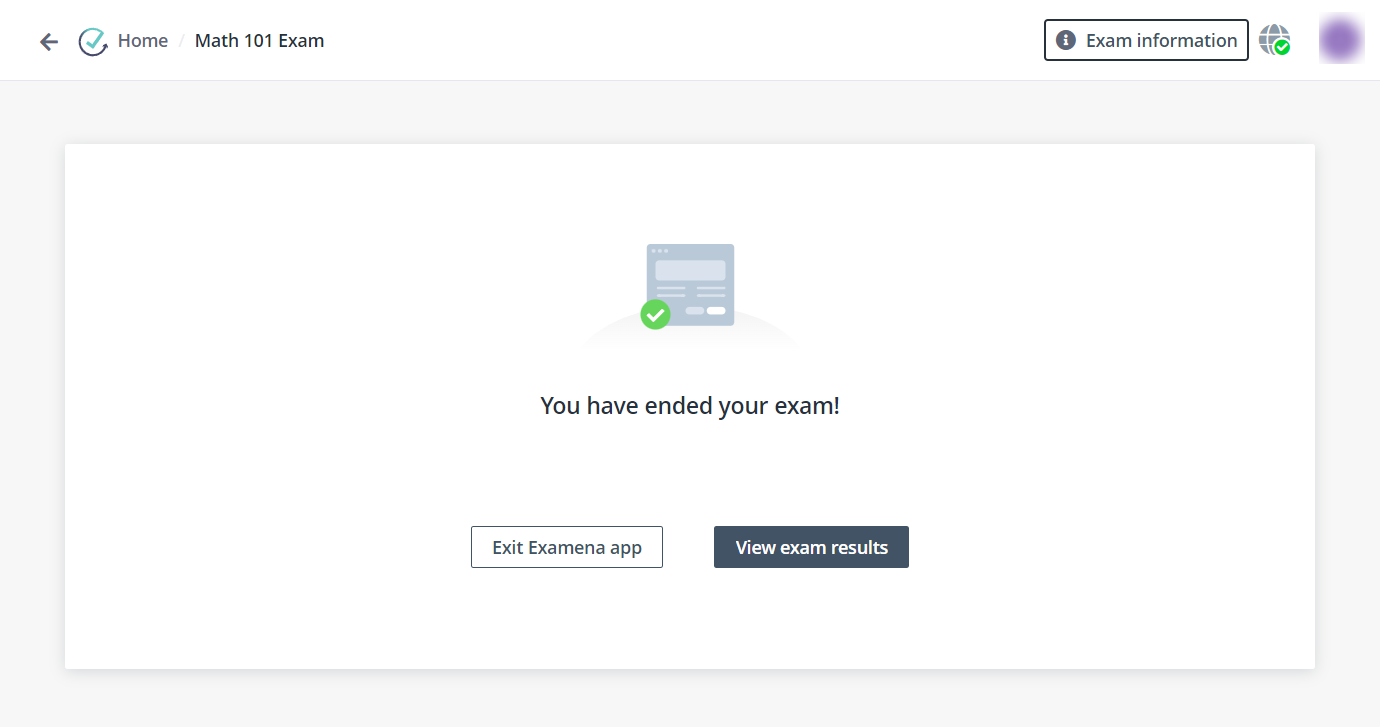
26. After the answers have been submitted, you can exit the app directly and check for your grade later in LMS platform after the results have been published to you by the instructor.