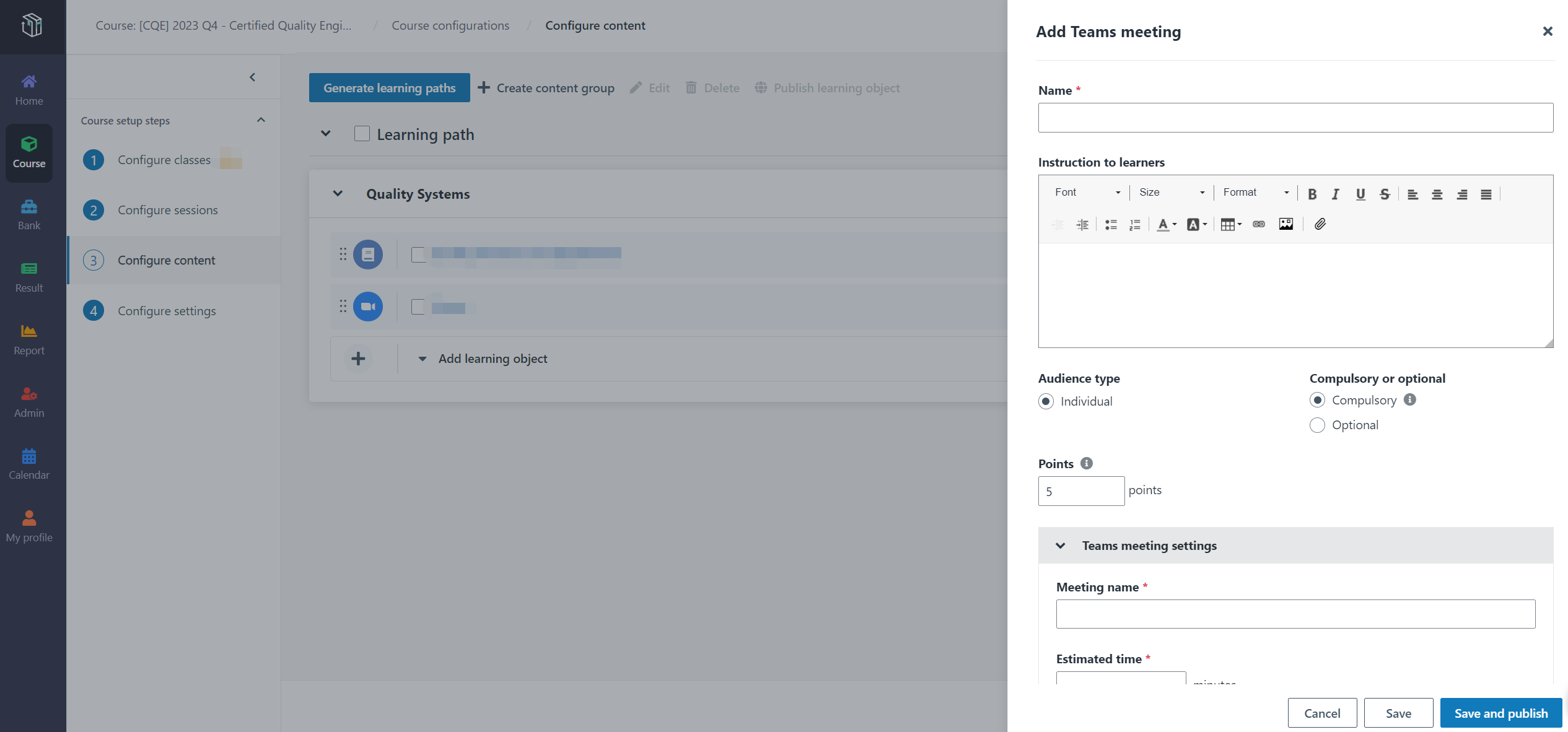
Course managers in an organisation can add content from other platforms, such as Google, YouTube, Mentimeter, and Miro, as learning objects, and also add customised contents directly using the rich editor. Now let’s see how to add the 3rd party contents and customised contents in Curricula.
1. In Curricula, click Course on the left navigation pane, and find the course.
2. Click Configure to open the Course configurations page.
3. Locate an existing content group or create a new one, and then click the learning object type Reference material.
In Add reference material panel, select Rich content. You can click the Expand button in the bottom right corner to enter the expanded editor mode and edit your content.
•The 3rd party contents – Two ways are available for adding the 3rd party contents:
o Embed code – Click the Embed code button, enter the embed code of documents or videos, and then click OK.
o Insert video – Click the Insert video button, select Web video as video type, enter video link, and then click OK.
•The customised contents- Enter your contents in the rich editor.
o Turn on the AI reading toggle to enable AI to generate audio for your material content.
*Note: Only text content can be read.
o Click the Generate table of contents button to generate a table of contents for the customised contents.
i. Select a heading format for the title so that it can be recognized by the table of contents.
ii. Place the cursor where you want to insert the table of contents, and then click the GenerateTable of Contents button.
iii. The generated table of contents will be displayed.
4. After configuring other settings, click Save and Publish.